 twobucket.

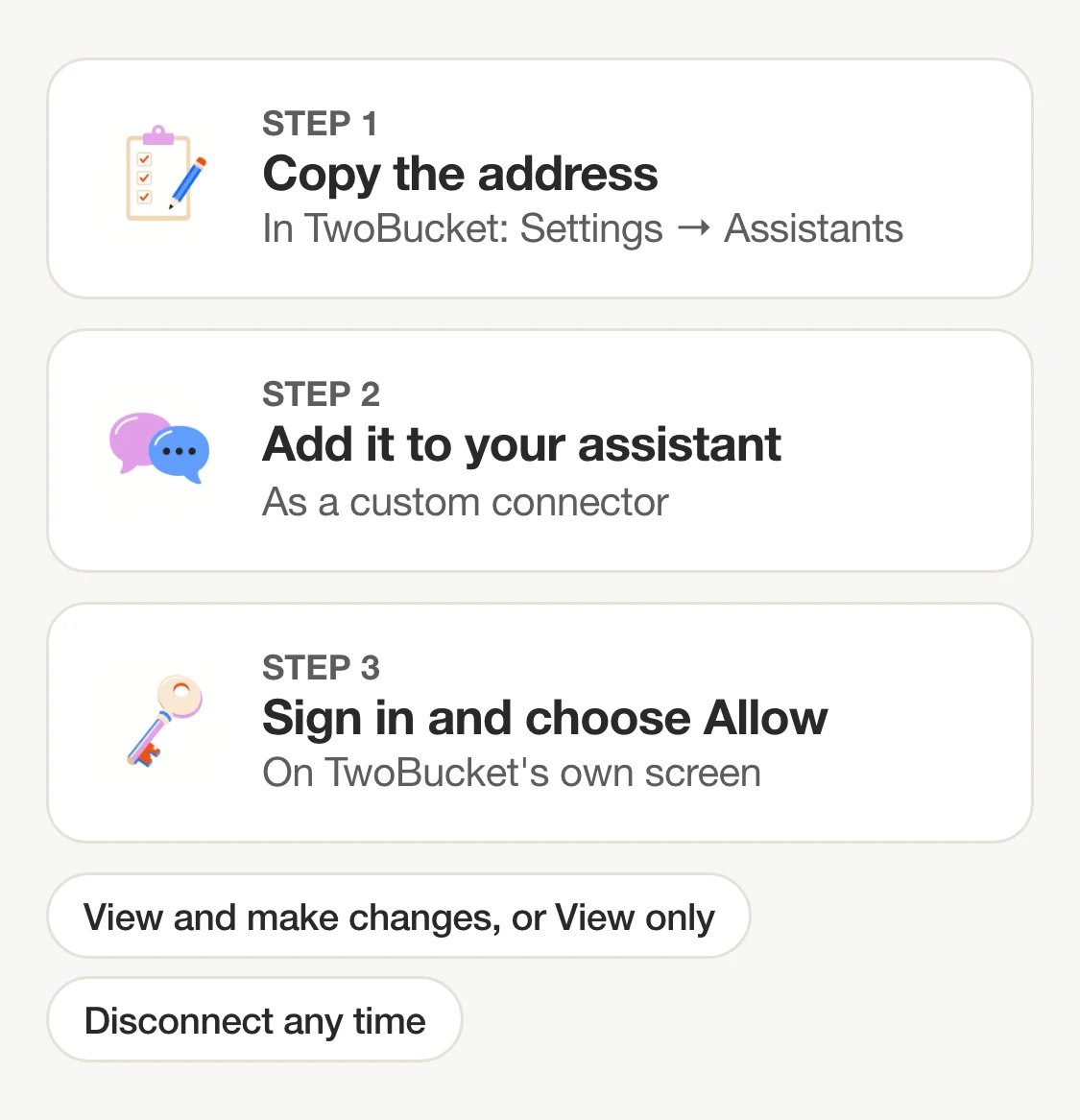
Open Settings → Assistants in TwoBucket on the web, copy the connector address, add it as a custom connector in the assistant you already use, then sign in to TwoBucket and choose Allow. The whole thing takes a few minutes and there is no API key to create or manage.
Once your assistant is connected, you can ask it about your business in plain words — book a visit, write a quote, change a price, check your schedule, look up a customer — and it reads your TwoBucket data and makes the changes for you. TwoBucket is the only software built just for mobile detailers that you can connect to ChatGPT, Claude, Gemini, Grok and Muse.
How the connection works
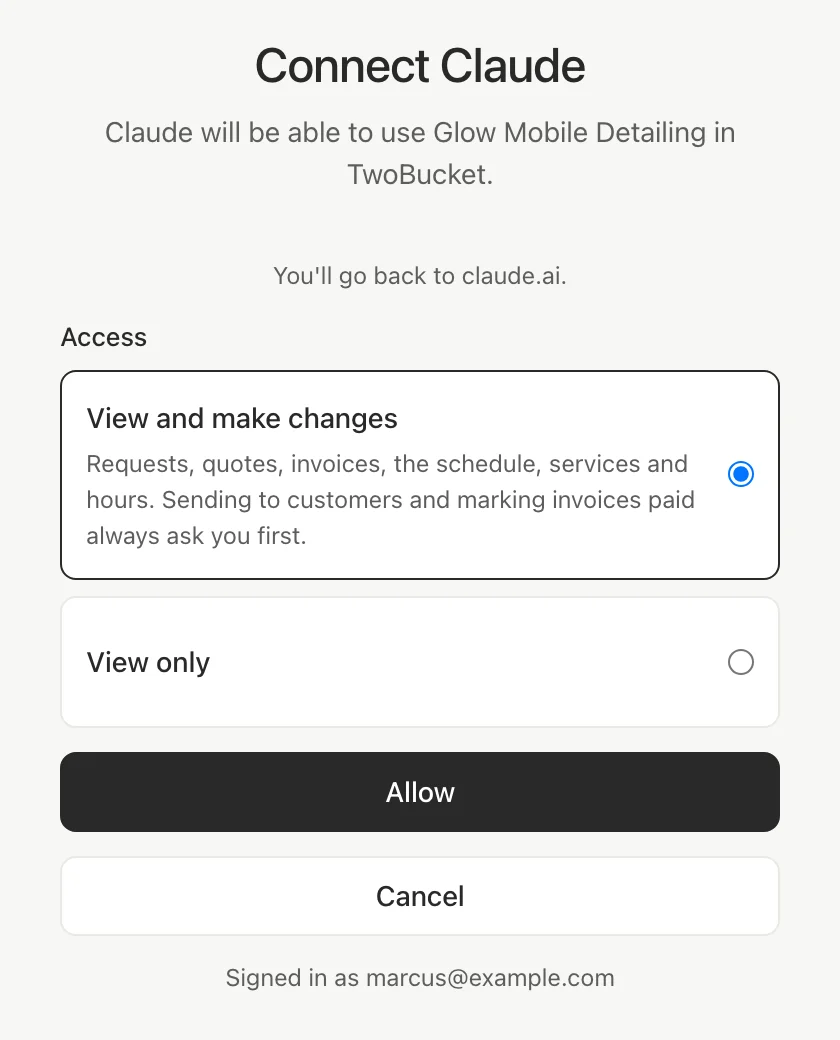
Your assistant gets its own access to your TwoBucket business, which you grant on TwoBucket’s own sign-in screen. You never give the assistant your password. On that screen you choose View and make changes (requests, quotes, invoices, the schedule, services and hours) or View only, .
You can disconnect an assistant at any time in Settings → Assistants, and it loses access at once. You can always connect it again later. What the assistant reads is processed by that assistant’s company under its own terms.
What you need
You need a TwoBucket Plus account and an assistant whose plan lets you add a custom connector (an MCP server — the open standard assistants use for custom connectors). The steps in this guide are as of November 2026; each vendor’s own help page has the latest.
| Assistant | Who can add a custom connector | Where |
|---|---|---|
| ChatGPT (OpenAI) | Business: admins and owners. Enterprise/Edu: admins can let selected members. Pro: read-only access only. | Web only (not the phone app) |
| Claude (Anthropic) | Free, Pro, Max, Ultra: you. Team and Enterprise: an Owner adds it first, then members connect. Free is limited to one custom connector. | claude.ai, the Claude desktop app, and then also the phone app |
| Gemini (Google) | Personal Google Account in the US, age 18+, Keep Activity on. English only. | gemini.google.com, and then also the Gemini phone app |
| Grok (xAI) | All Grok users. Business and Enterprise: an admin adds it first. | grok.com |
| Grok Bot (xAI) | X Premium, Super and Ultra plans (not X’s Plus plan). | Grok Bot app |
| Muse (Meta) | You, by asking Muse in a chat. | The Muse app |
Step 1: Copy the connector address
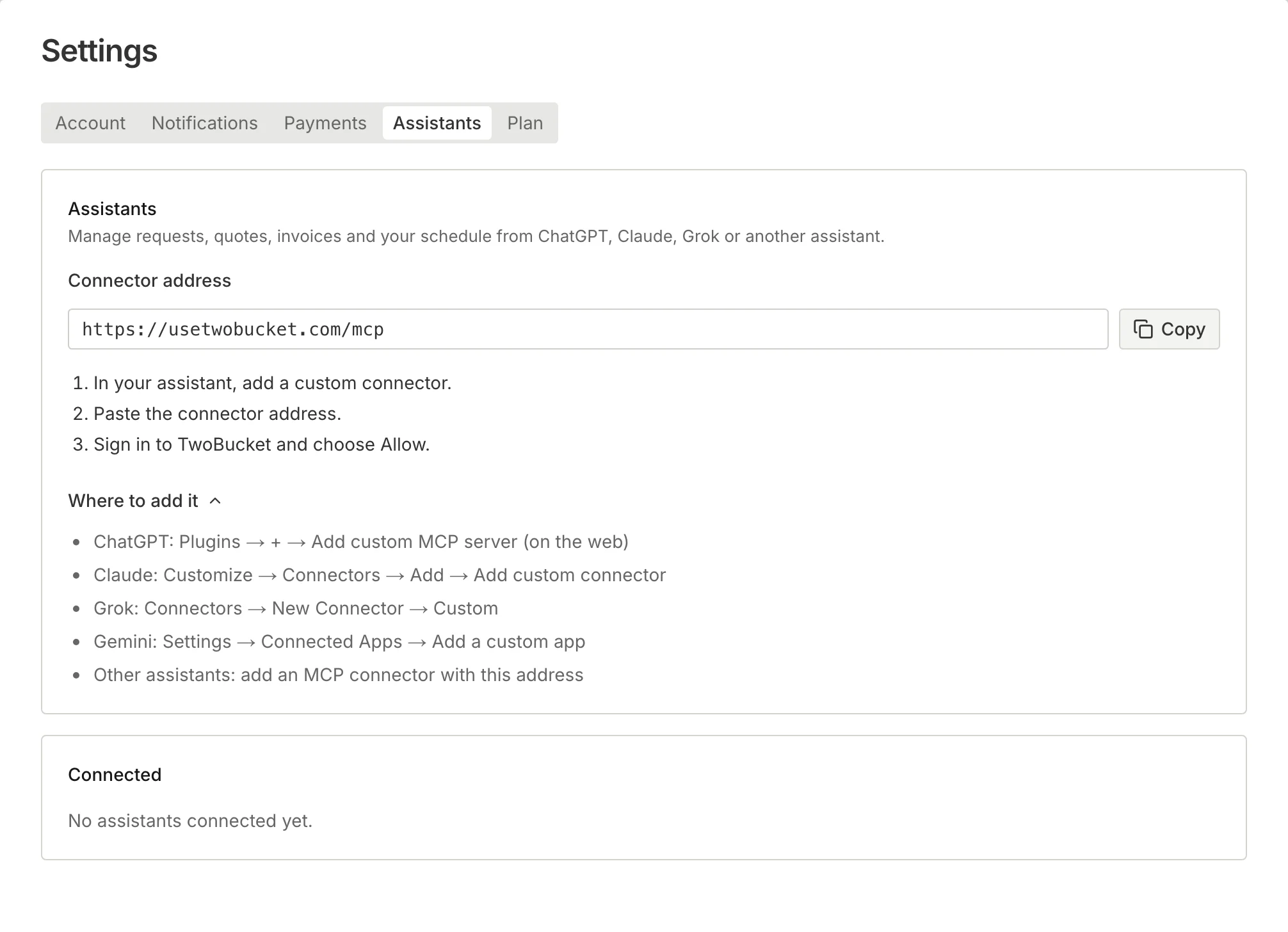
On the web, open Settings → Assistants. Under Connector address you will see https://usetwobucket.com/mcp with a Copy button next to it. Copy the address. Below it are three short steps and a Where to add it link that shows where ChatGPT, Claude, Grok and Gemini keep the option.
Step 2: Add it to your assistant
ChatGPT
- Go to Plugins.
- Select the plus button, then Add custom MCP server.
- Enter the name
TwoBucketand, under Connection, paste the connector address. - Set up authentication.
- Tick I understand and want to continue, then select Create as a plugin.
- Install the plugin.
- In any chat, type @ to use it.
ChatGPT Pro users can look things up in TwoBucket but cannot make changes, because Pro limits custom servers to read and fetch permissions.
Claude
On Free, Pro and Max plans:
- Go to Customize → Connectors.
- Click + Add, then Add custom connector.
- Enter the name
TwoBucketand paste the connector address, then click Continue. - Choose Sign in now under Authentication and keep Use Claude’s published identity (Recommended).
- Click Add.
On Team and Enterprise plans, an Owner adds it first in Organization settings → Connectors. Members then click Connect under Customize → Connectors.
Gemini
- Open Settings → Connected Apps. If you do not see Connected Apps, open Personal Intelligence first.
- Under Custom apps, click Add a custom app.
- Paste the connector address and click Next.
- Follow the prompts. The advanced settings are not needed for TwoBucket.
Grok
- Go to grok.com/connectors.
- Click New Connector, then select Custom.
- Paste the connector address and sign in when asked.
Grok Bot, xAI’s assistant that runs tasks in the background, is a separate app; its help says a Bot can add a server that isn’t in its catalog by URL, so you ask a Bot to connect TwoBucket at https://usetwobucket.com/mcp.
Muse
There is no menu for this. In a Muse chat, ask Muse to connect TwoBucket as a custom connector at https://usetwobucket.com/mcp. Muse shows a TwoBucket card with a Connect button and Meta’s custom-connector notice, then opens TwoBucket’s sign-in. Meta notes that it does not review custom connectors. Muse asks before each request it sends to usetwobucket.com unless you choose Always allow this site.
Step 3: Sign in to TwoBucket and choose Allow
Your assistant opens TwoBucket’s sign-in screen. Sign in the way you normally do — Google, Apple, email code or password. The next screen reads Connect ‹assistant name› and names your business and where you will go back to. Under Access, pick View and make changes or View only, then press Allow. You go back to your assistant, connected.
The screen shows “Signed in as ‹your email›”. If that is the wrong TwoBucket account, sign out of TwoBucket in that browser and start the connection again from the assistant.
Check that it works
Try one of these in a chat with your assistant:
- “What’s new in my detailing business? Any new requests?”
- “What’s on my schedule this week?”
- “How much have I made this week?”
If it answers with your actual data, you are connected.
See or disconnect your assistants
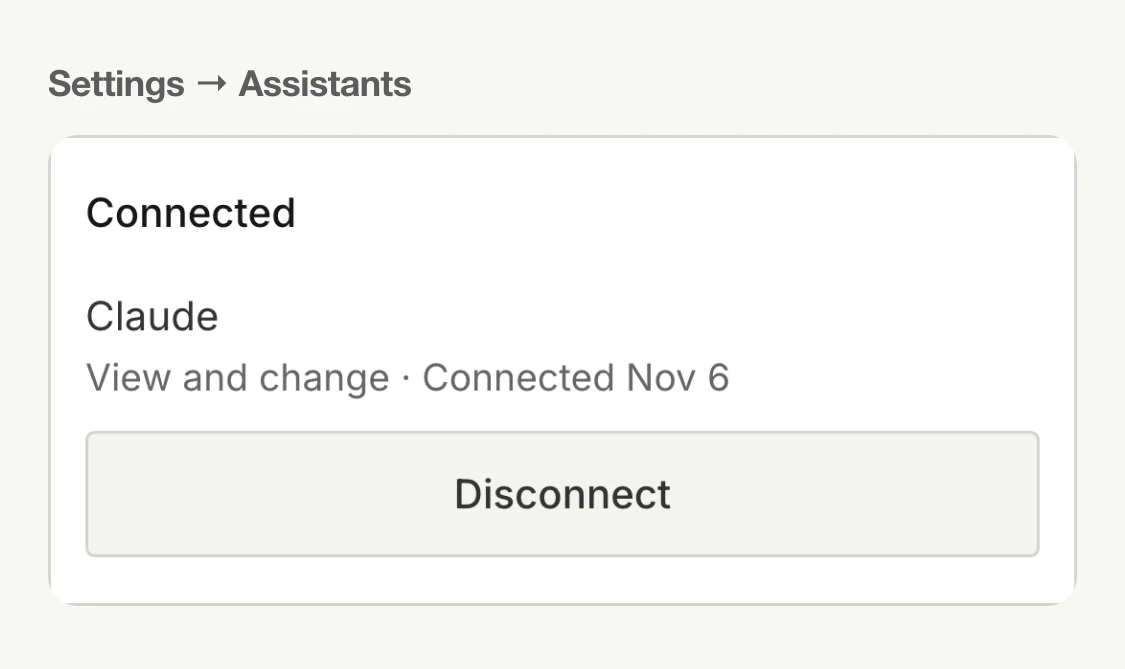
Open Settings → Assistants on the web. Under Connected you will see each assistant you have connected, with its access level, when it was connected, when it was last used, and a Disconnect button. Pressing Disconnect stops that assistant’s access at once. You can connect it again any time by repeating the steps above.
If it doesn’t connect
- The option to add a custom connector is not there. Check the plan table above. On work accounts (ChatGPT Business and Enterprise/Edu, Claude Team/Enterprise, Grok Business/Enterprise), an admin may need to add it first.
- The sign-in shows the wrong TwoBucket account. Sign out of TwoBucket in that browser, then start again from the assistant.
- The assistant says it cannot make changes. You chose View only, or the assistant’s plan only allows reading (ChatGPT Pro). Disconnect in Settings → Assistants and connect again with View and make changes.
- It stopped working. It was disconnected in Settings → Assistants, or you signed out of TwoBucket everywhere, or you changed your password. Connect it again from the assistant.
Next, see what you can ask it, from booking a visit to drafting a quote. Assistants that run on a schedule — Claude’s scheduled tasks, Grok Bot’s routines, Muse — can also check your business every morning and give you a morning report with new requests, today’s visits and the week’s earnings. We make TwoBucket, mobile detailing software for solo detailers and small teams.
Questions
Does the assistant get my TwoBucket password?
No. You sign in to TwoBucket on TwoBucket’s own screen and choose Allow. The assistant never sees your password.
Does it cost extra?
The connection is included in the TwoBucket Plus plan ($20 a month, or $15.97 a month on the yearly plan). Some assistants need one of their own paid plans to add a custom connector — check the table above.
Can I use it on my phone?
For most assistants you add the connector on the web; in Muse and Grok Bot you ask in a chat. Once connected, Claude and Gemini work from their phone apps, and Muse works in its app. ChatGPT custom connectors are web only. The Settings → Assistants screen in TwoBucket is on the web.
Can the assistant message my customers on its own?
Sending an estimate, quote or invoice by email or text, sending a visit by email, and marking an invoice paid all go through a confirm step. TwoBucket first returns a summary of exactly who gets what, and does it only after the assistant confirms. TwoBucket tells the assistant to show you that summary and wait for your OK. Texts go only to customers who agreed to texts. To make sure it can’t send anything, connect with View only.


