 twobucket.

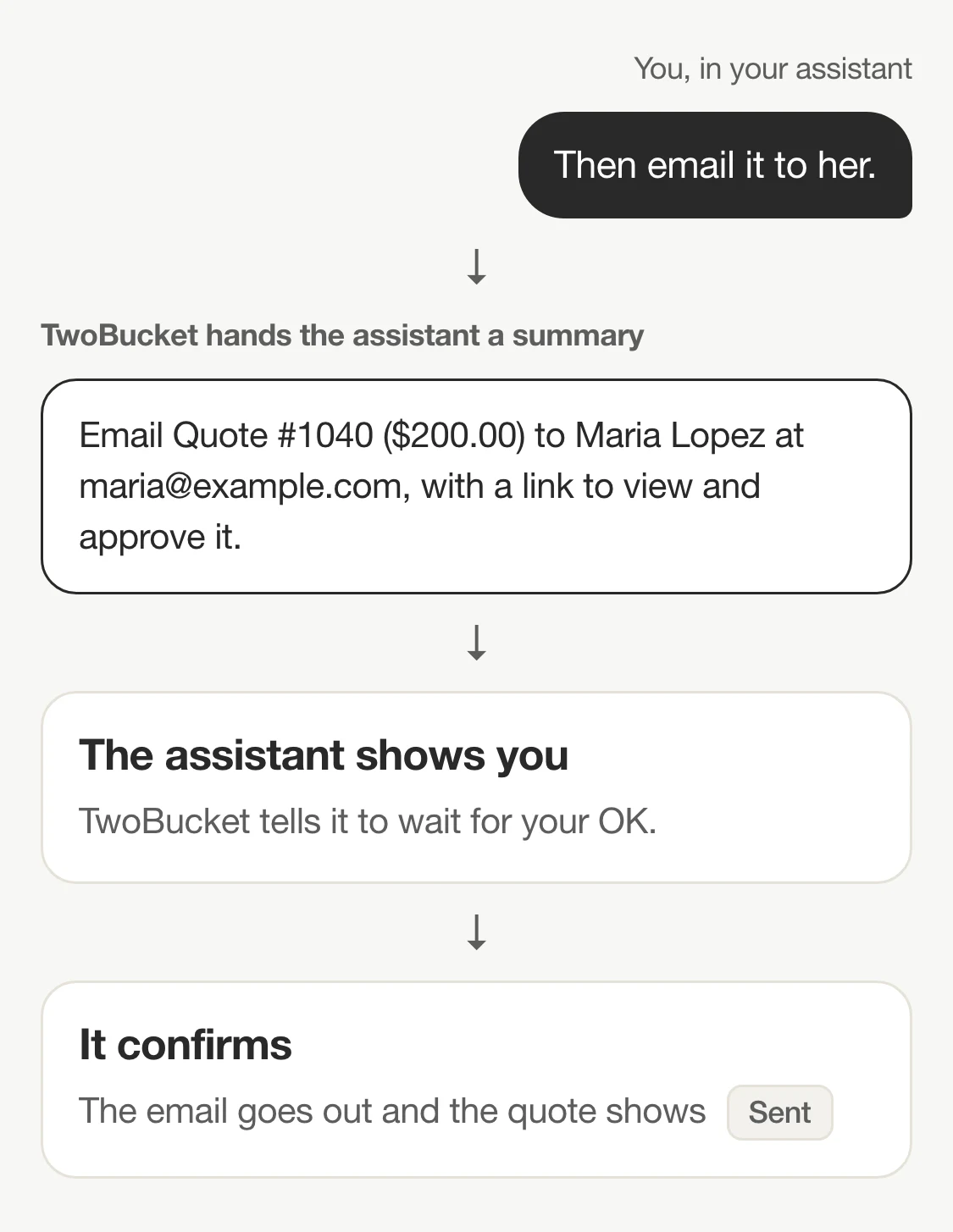
Connect the AI assistant you already use — ChatGPT, Claude, Gemini, Grok or Muse — to TwoBucket, and then type what you would otherwise tap through. “Put Maria on the schedule for Monday at 9am, 2 hours” creates the visit in TwoBucket. “Make her a quote: exterior detail $140 and headlight restoration $60, then email it to her” builds the quote and emails it after TwoBucket’s summary. Before anything goes to a customer, TwoBucket hands the assistant a summary of exactly who gets what and tells it to check with you.
This guide covers what changes when the assistant can see your business, how to book jobs, send quotes, record payments, update your prices and hours, and how sending to customers works: a summary first, then a confirm. Every example here was done for real through Meta’s Muse, in a test business with made-up customers. TwoBucket is the only software built just for mobile detailers that you can connect to ChatGPT, Claude, Gemini, Grok and Muse.
What changes when the assistant can see your business
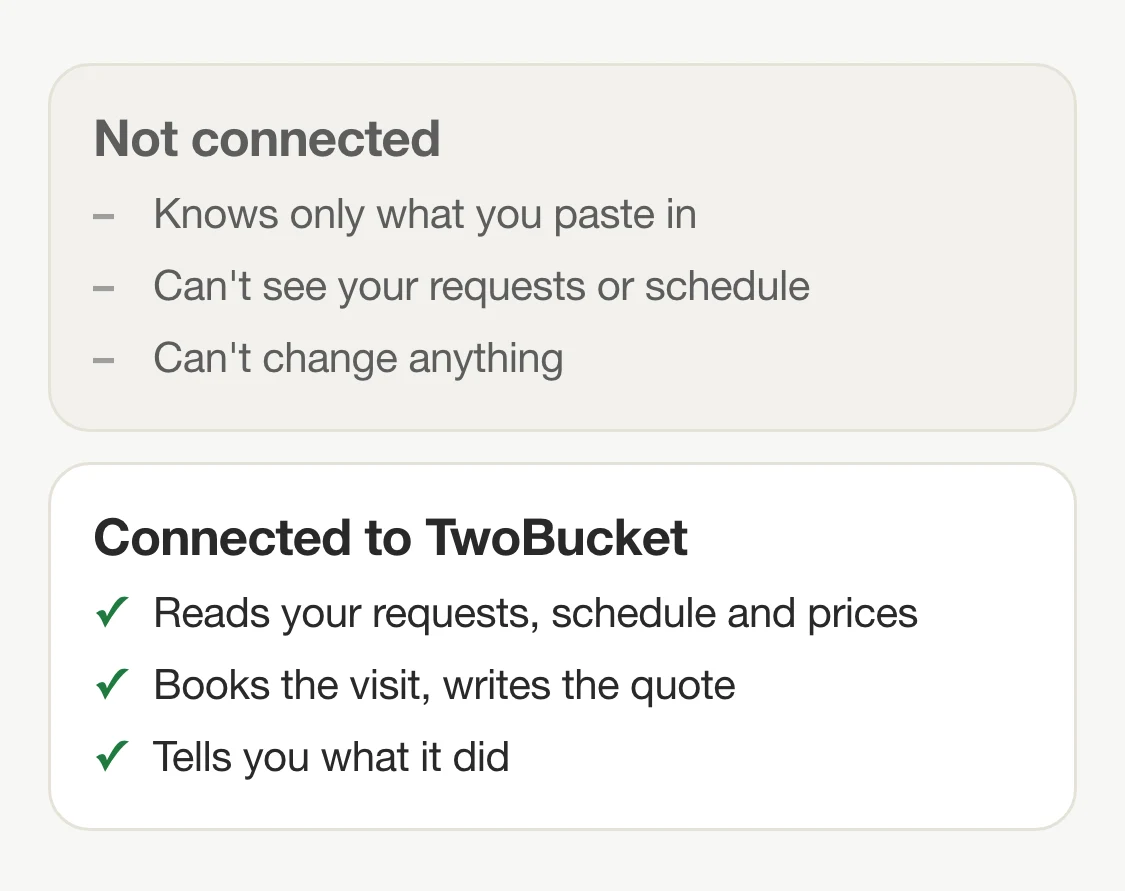
Without a connection, an AI assistant only knows what you paste into it. You can ask it to write a polite reply to a customer, but it cannot look up the customer’s request, check your schedule, or put anything on your calendar.
Connected to TwoBucket, it reads your real requests, schedule, prices, customers and earnings, and makes changes for you when you ask. You type it the way you’d say it: “Am I free Tuesday afternoon?” or “Bump my interior detail to $110.” It checks TwoBucket, does the work, and tells you what it did.
Start the day
“Morning! What’s new in my detailing business? Any new requests I need to deal with?” The assistant listed three new requests: Lucía Fernández, interior detail and headlight restoration on a 2020 Subaru Outback; James Carter, interior detail on a 2018 Ford F-150; and Maria Lopez, exterior detail and headlight restoration on a 2021 Toyota RAV4.
“Am I free Tuesday afternoon? And has a guy called Kevin Park ever booked with me?” Tuesday afternoon was free. No customer named Kevin Park was found.
From request to booked job
“Tell me about Maria Lopez’s request. Where’s the job, when does she want it, any notes, and what’s the price?” The assistant returned her address, that she asked for Monday morning, the two services, her note (a gate code and “please park on the street”), the vehicle conditions she ticked (pet hair, stains), her phone and email, and that texts were not allowed on her request, so email was the way to reach her.
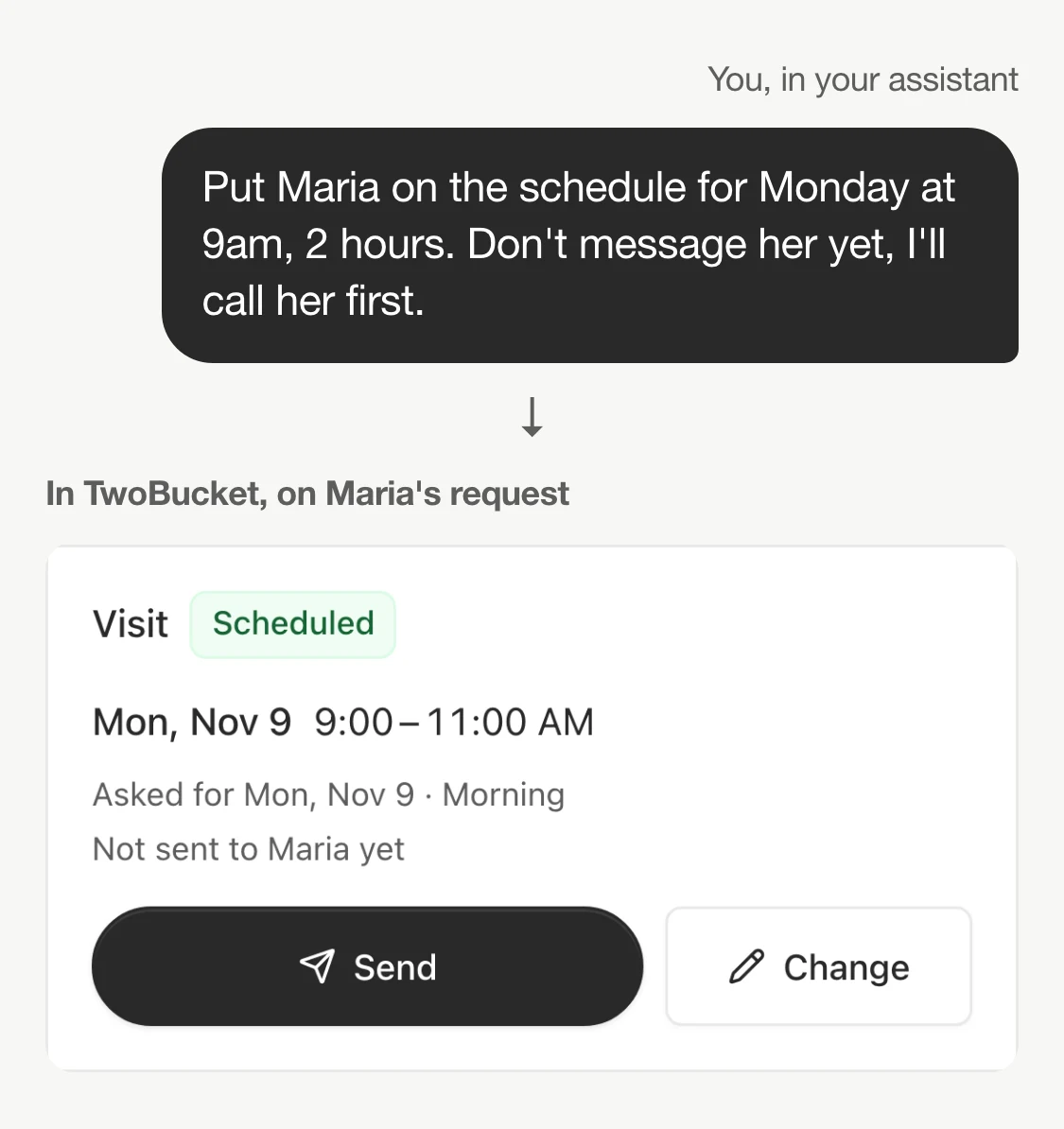
“Put Maria on the schedule for Monday at 9am, 2 hours. Don’t message her yet, I’ll call her first. And mark her request as contacted.” The visit went on the schedule for 9:00–11:00 AM, the request was marked Contacted, and nothing was sent to Maria.
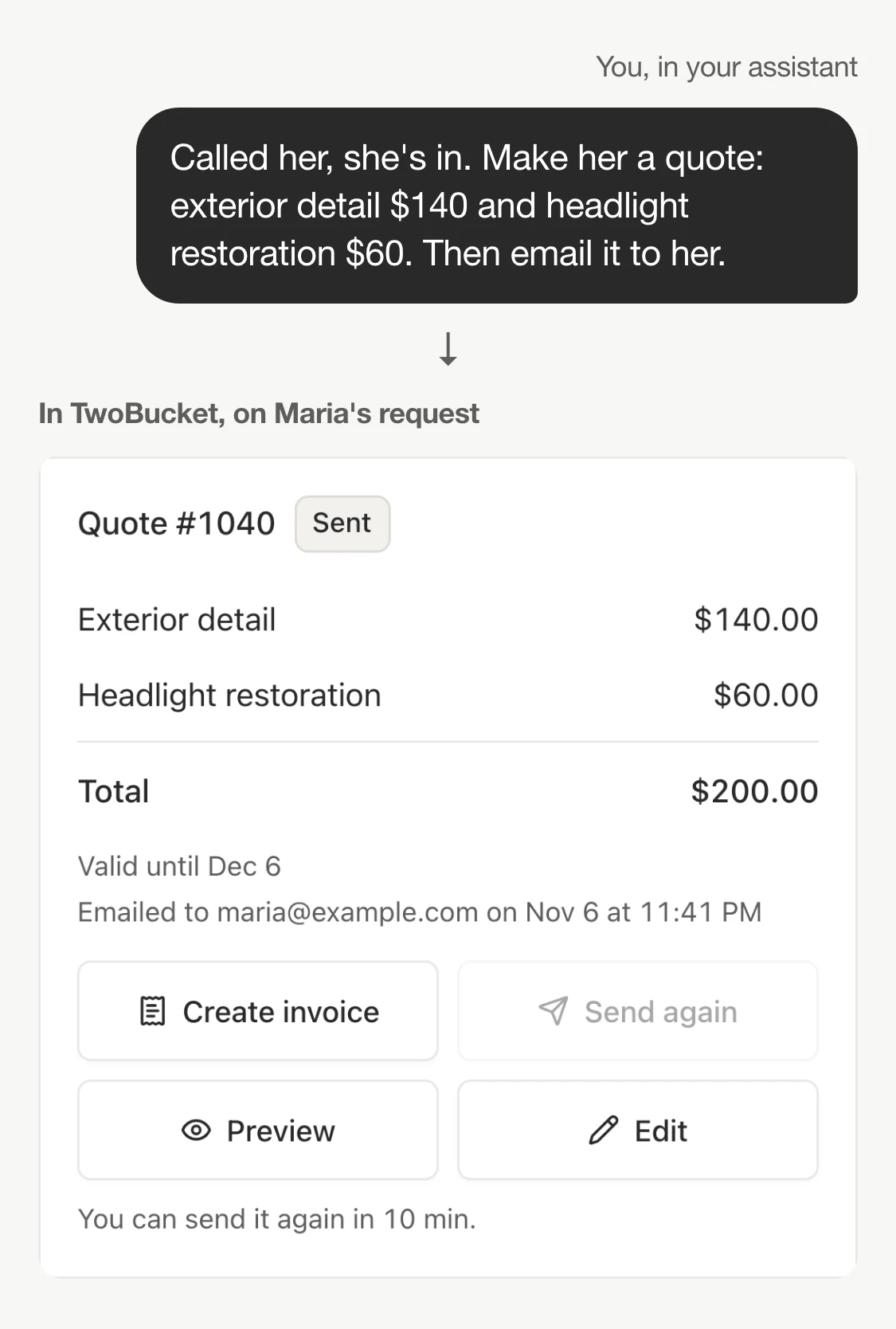
“Called her, she’s in. Make her a quote: exterior detail $140 and headlight restoration $60. Then email it to her.” A $200 quote was created and emailed to her.
Quotes, invoices and getting paid
When Maria paid, the next message was: “Heads up, Maria just paid me the $200 in cash.” A quote cannot be marked paid in TwoBucket, so the assistant created an invoice for the same $200 and marked it paid in cash. Then “How much have I made this week?” returned the week’s earnings: $200 from one job.
“Draft a quote for James Carter, interior detail at the new $110. I want to look it over before it goes out.” A $110 quote was saved as a draft in TwoBucket and not sent to James.
“Just text it to him.” TwoBucket refused. James had not agreed to texts, and he had no email on file either, so the quote stayed a draft, and the assistant said why.
“Delete that draft quote. And take Full detail off my booking page for now.” The draft was deleted and the Full detail service was hidden from the booking page.
Prices, services and hours
“Couple of business changes: bump my interior detail to $110, and I’m not working Fridays anymore.” The interior detail price changed to $110 in TwoBucket, and Friday was removed from the working hours. Both took one message. You can also add services, change descriptions, or hide a service from the booking page without deleting it — the same way the Full detail service was hidden above.
Sending to a customer takes a summary and a confirm
Sending a quote, invoice or estimate to a customer, or a visit by email, always takes two steps. TwoBucket returns a summary of exactly who gets what — the customer’s name, the document, and how it will be sent — and only delivers it when the assistant confirms. TwoBucket tells every assistant to show you that summary and wait for your OK.
Marking an invoice paid works the same way: a summary first, then the confirmation.
Texts go only to customers who agreed to receive them. When the assistant tried to text the draft quote to James Carter, TwoBucket refused because James had not consented. The quote stayed a draft until you decided what to do.
You can say “don’t message the customer yet” in any request, the way Maria’s visit was booked without notifying her. If you want the assistant to read your business but never change anything, connect it with View only instead of View and make changes. And you can disconnect any assistant instantly from Settings → Assistants.
It can also work while you’re on a job
Some assistants run tasks on a schedule: Claude’s scheduled tasks, Grok Bot’s routines and Meta’s Muse can all do this. You can set one to check TwoBucket every morning and send you the new requests and today’s visits, draft quotes for you to look over, and tell you the week’s earnings. Keep the sending for when you’re there: anything that goes to a customer goes through TwoBucket’s summary and confirm step.
Our guide to a morning report shows how to set it up, with requests you can copy.
Tips for asking
- Use the customer’s name and say the day and time plainly (“Monday at 9am, 2 hours”).
- Say what should not happen yet: “don’t message her yet.”
- If you want to check something first, say so: “draft it, I want to look it over.”
- Ask the assistant to read back what it changed, or check it yourself in TwoBucket.
- Ask for one job at a time when it matters; a list of small changes in one message is fine.
Setting it up in TwoBucket
On the web, open Settings → Assistants. You will see a connector address with a Copy button. In the assistant you use — ChatGPT, Claude, Gemini, Grok or Muse — add a custom connector and paste that address. Sign in to TwoBucket when prompted and choose Allow. Pick “View and make changes” or “View only” depending on how much control you want the assistant to have. No API key is needed, and the assistant never sees your TwoBucket password.
The connection is included in the Plus plan, which is $20 a month or $15.97 a month on the yearly plan. Some assistants need one of their own paid plans to add a custom connector. We make TwoBucket — it is mobile detailing software for solo detailers and small teams — and there is a step-by-step guide that walks through each assistant in detail.
Questions
Does the assistant see my customers’ details?
Yes. When connected with View and make changes or View only, the assistant can read customer names, phone numbers, email addresses, vehicle information, and request details. That information is processed by the assistant’s company under its own terms: OpenAI for ChatGPT, Anthropic for Claude, and so on. Look at your assistant’s data and privacy settings before you connect it.
Can I use it from my phone?
Yes, with most assistants. Once you connect on the web, Claude and Gemini work from their phone apps, and Muse works in its app. ChatGPT’s custom connectors are web only. The Settings → Assistants screen where you manage the connection is on the web.
Which assistant should I use?
The one you already pay for and like. Any of the named assistants — ChatGPT, Claude, Gemini, Grok or Muse — that can add a custom connector works with TwoBucket.
What happens if I disconnect the assistant?
It loses access to your TwoBucket business immediately. Go to Settings → Assistants and click Disconnect next to the assistant you want to remove. You can reconnect at any time.


