 twobucket.
How to Add a Booking Form to Your Detailing Website
Add a quote and booking form to your detailing website, on Wix, Squarespace, WordPress or any other site builder. TwoBucket gives you the code; paste it once, and requests from your website land in Requests with the rest.
Steps
- Click Booking page, then Add to website next to your page address.
- Pick how the form shows: Inline, Pop-up button, Floating button or Link.
- Click Copy code.
- For the floating button, paste the code once into your site's header or footer code, so it shows on every page. Where to paste it has steps for Wix, Squarespace, WordPress and others.
- Click Preview to try the form as a visitor would.
Transcript
0:00 Add to website
In this video you'll learn how to add a booking form to your detailing website with TwoBucket. From the sidebar, click Booking page. Next to the page address, click Add to website.
0:11 Pick how it looks
There are four ways to show the form. Inline puts it inside a page. Pop-up button opens it from a button on one page. If you already have a button, use Link. Click Floating button, then play the example. A Get a quote button sits in the corner of every page, and it opens the form.
0:31 Copy the code
Click Copy code. Paste it once into your site's settings for every page, usually called header or footer code. Click Where to paste it. There are short steps for Wix, Squarespace, WordPress, and others. On Squarespace, it's Code Injection, then Footer. Click Preview.
0:49 Try it
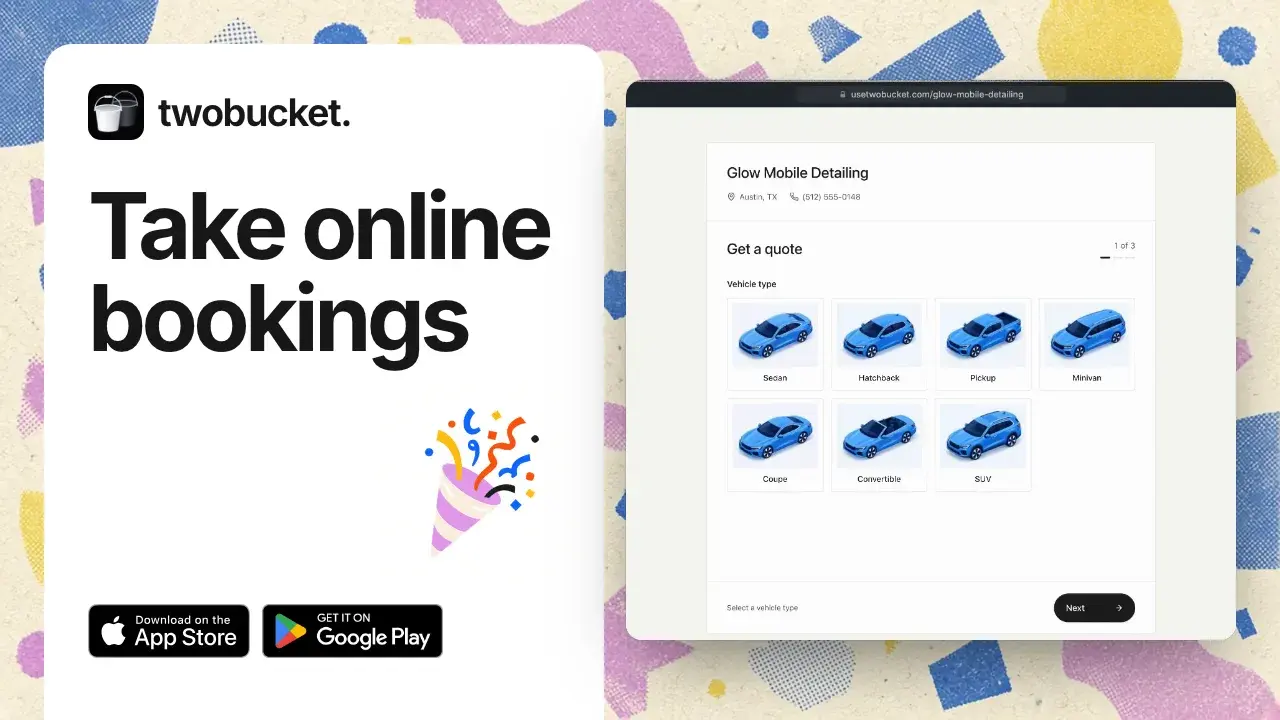
This is what opens when someone clicks the button on your website. Pick SUV. It's the same form as your booking page, and requests from your website land in Requests like any other. Thanks for watching. If you ever change your page address, update the code on your website too.
Read more
More tutorials
Your work is spotless. Now your business is too.
Set up your page today and share it with your next customer.
Try for $0