How to Customize Your Car Detailing Booking Page
Make your detailing booking page look like your business in TwoBucket: upload your logo, write a short description, pick a color theme and link your Instagram. Customers see it all above your quote form.
Steps
- Click Booking page in the sidebar and open Business details.
- Upload your logo. It saves on its own.
- Write a short Description, like where you work, and click Save.
- Open Theme and pick a color set, such as Midnight.
- Open Social profiles, paste your Instagram link and click Save.
- Click View page to see it the way a customer does.
Transcript
0:00 Logo and description
In this video you'll learn how to customize your detailing booking page in TwoBucket. From the sidebar, click Booking page. Then open the section called Business details. Click Upload logo. Then pick your file. The logo appears and saves by itself. In the field called Description, type Mobile car detailing at your home or office, all over Austin. Then click Save.
0:26 Theme and Instagram
Now open Theme. These are colors for your page. Click Midnight, a dark one. It saves right away. Next, open Social profiles. Type your link in the field called Instagram, then click Save.
0:40 See your page
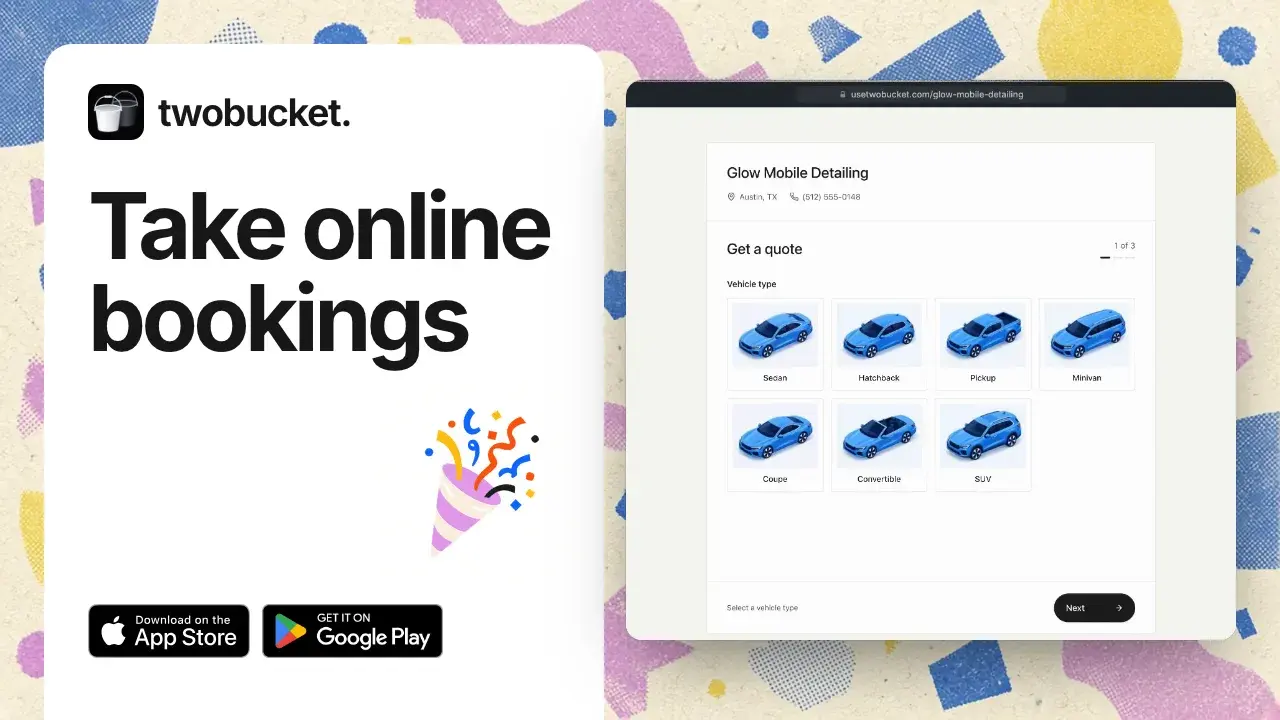
Back at the top, click View page. Here's your page in the dark Midnight theme. Your logo and description are at the top, with an Instagram icon, and the quote form below. Thanks for watching. You can change any of this later under Booking page.
Read more
More tutorials
Take your next booking on TwoBucket
Set up your page today and share it with your next customer.
Try for $0