 twobucket.
Before and after photos for every detailing job
Photograph every car you detail, right from the job. Keep a private record of its condition, and turn your best work into an album on your booking page.
Photos on every job
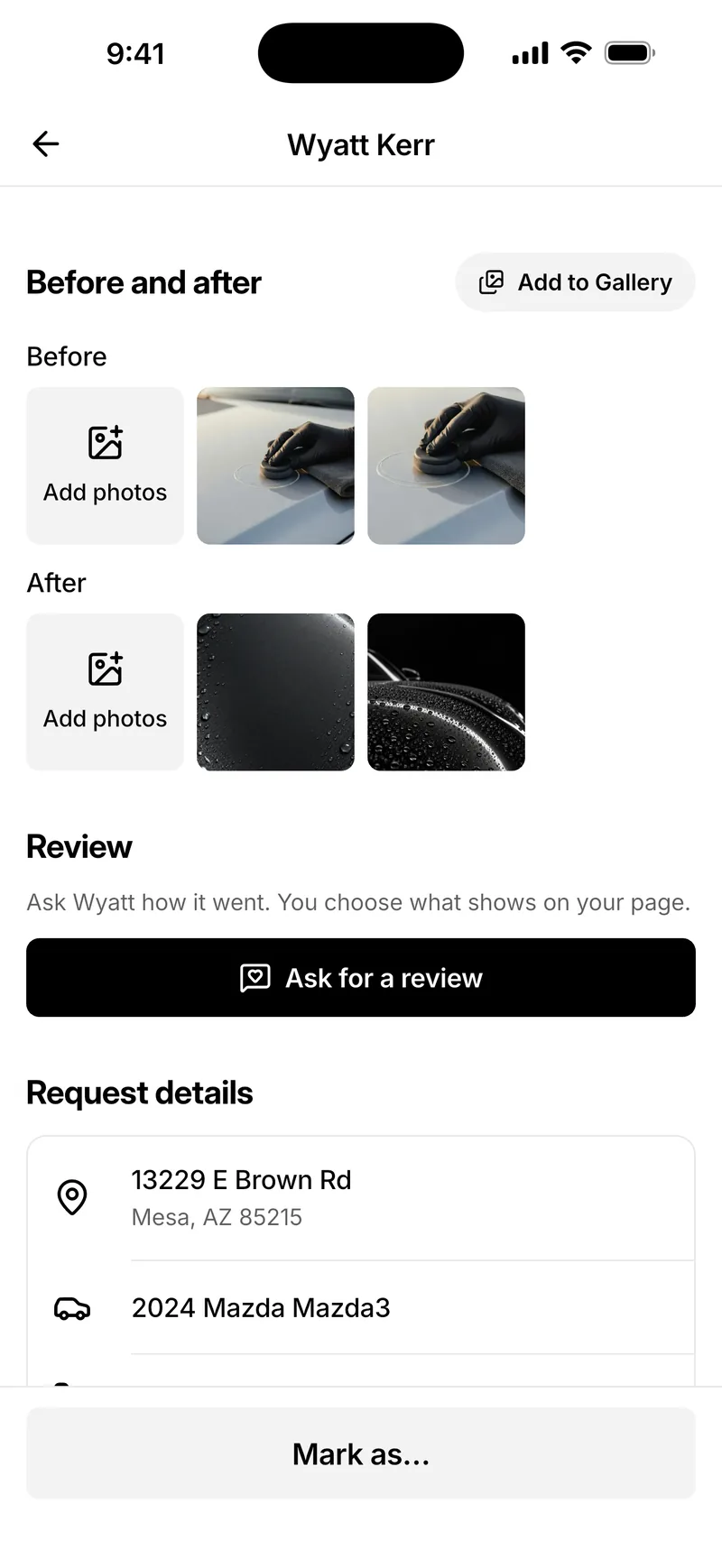
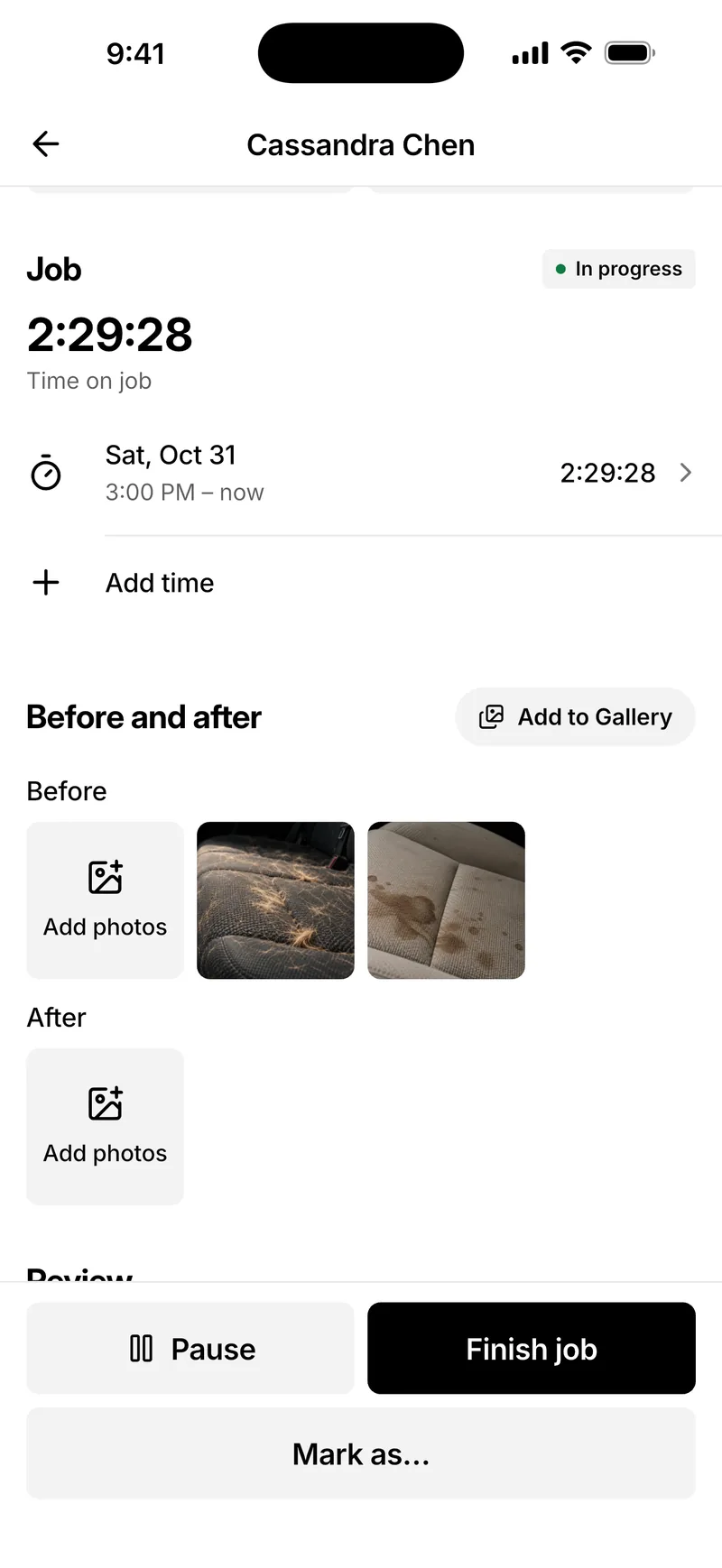
Open a booked job in the TwoBucket app or on the web and you’ll find Before and after. Add photos when you arrive to capture the car’s condition, then add more when you finish. Each job holds up to 50 Before and 50 After photos.
- JPG, PNG or WebP, up to 5 MB each
- Each photo is numbered and opens larger
A record of the car as you found it
Every photo stays with the job and its customer, private to your business, with the time it reached TwoBucket. Location and camera data are removed. When a customer asks about a scratch or a stain weeks later, open the job and see the car as you found it.
How to take before and after photos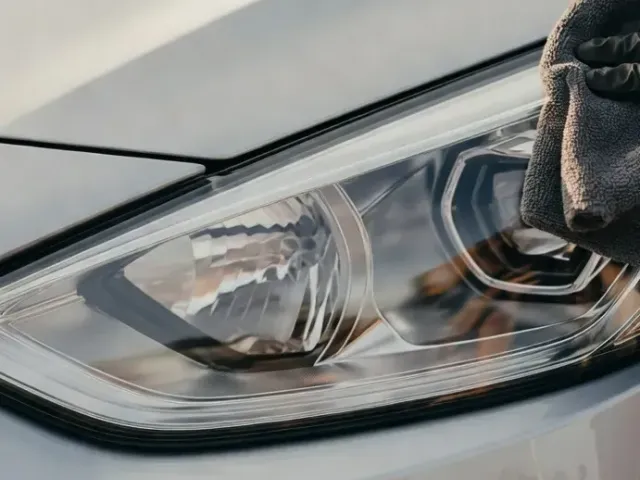
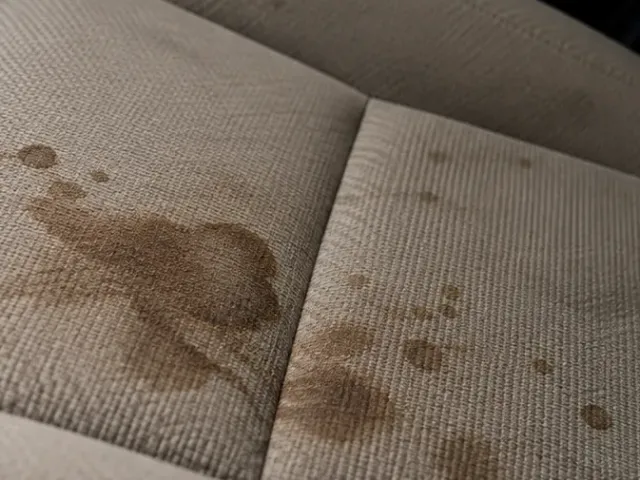
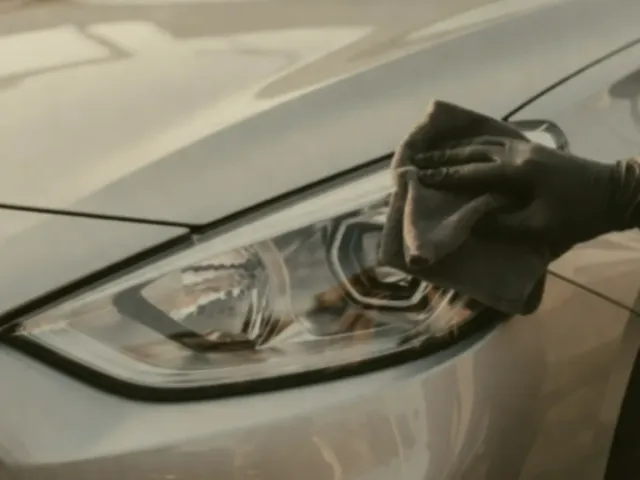
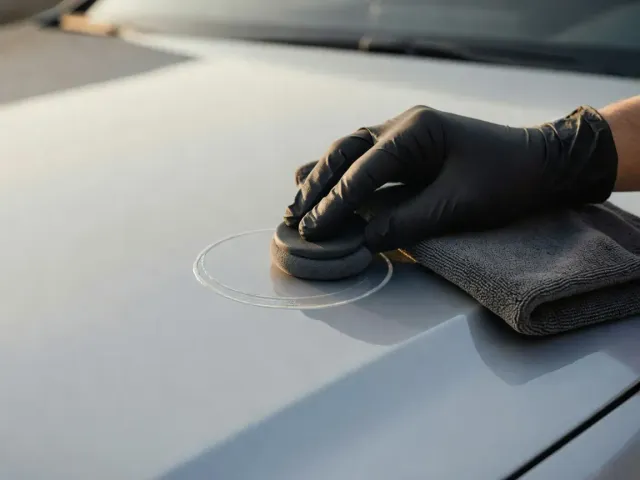
Your best work in the Gallery, in one step
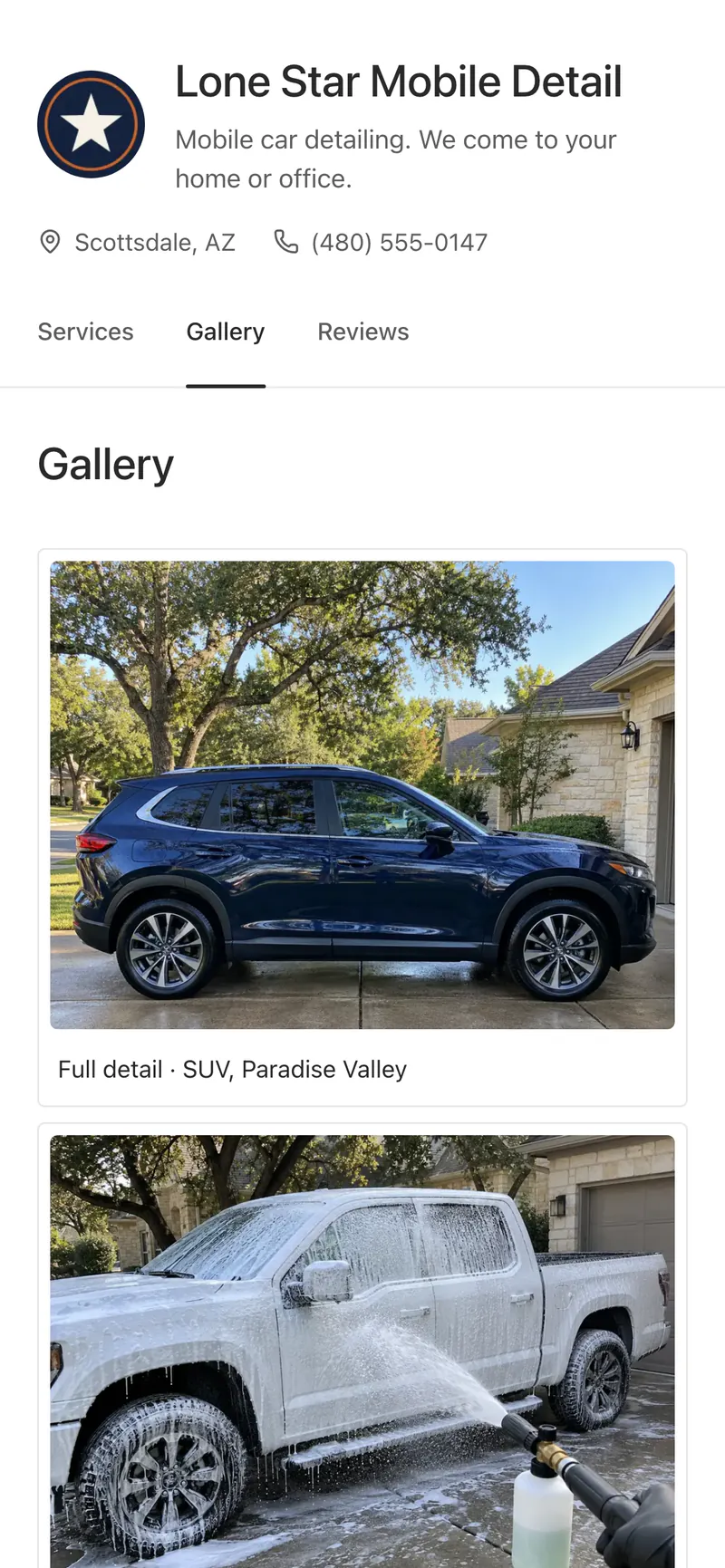
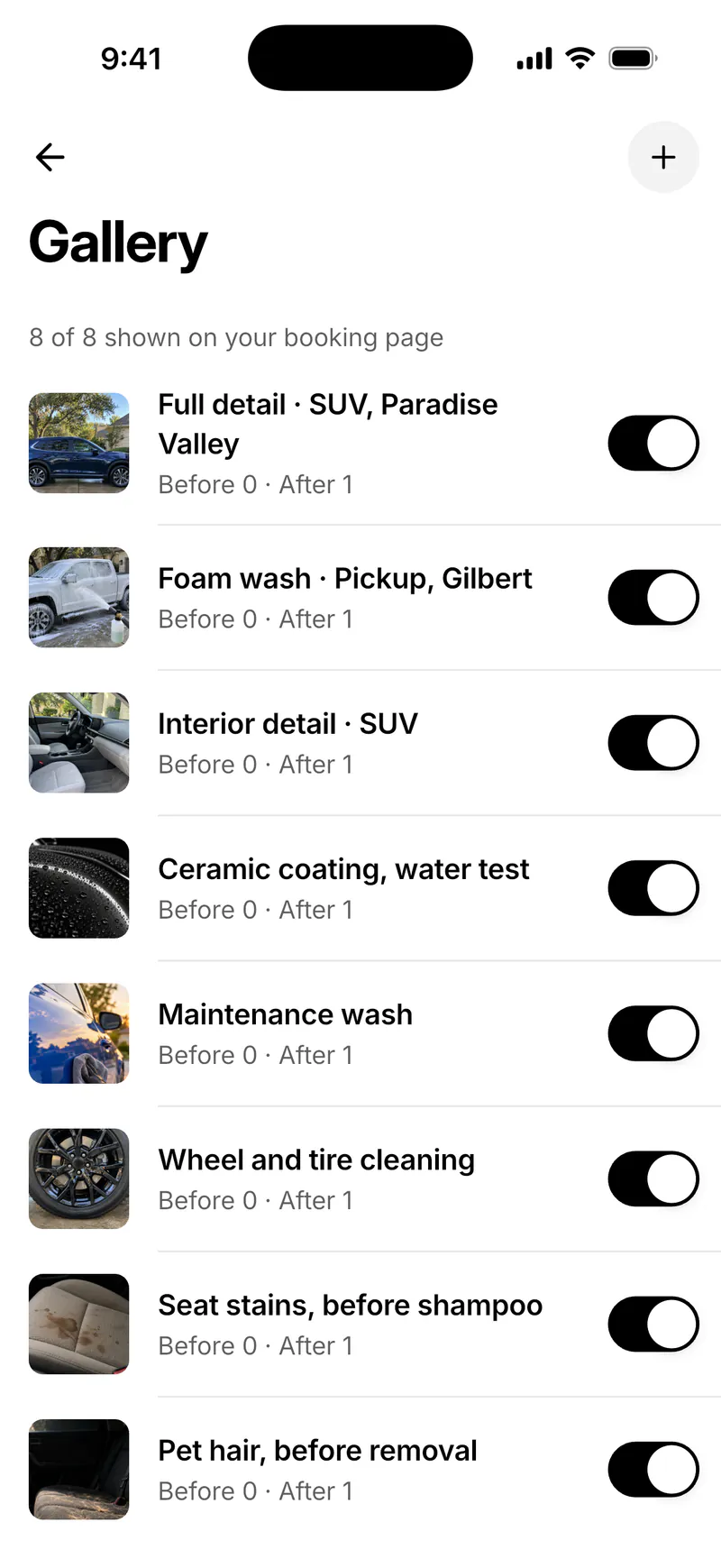
Tap Add to Gallery and choose up to 8 Before and 8 After photos. TwoBucket makes an album titled with the vehicle and the first service, with the first After photo as its cover. It stays hidden until you turn it on, then shows in the Gallery on your booking page.
- The album and the job’s photos are separate copies
- Every album has its own switch and caption
Photos from the customer, too
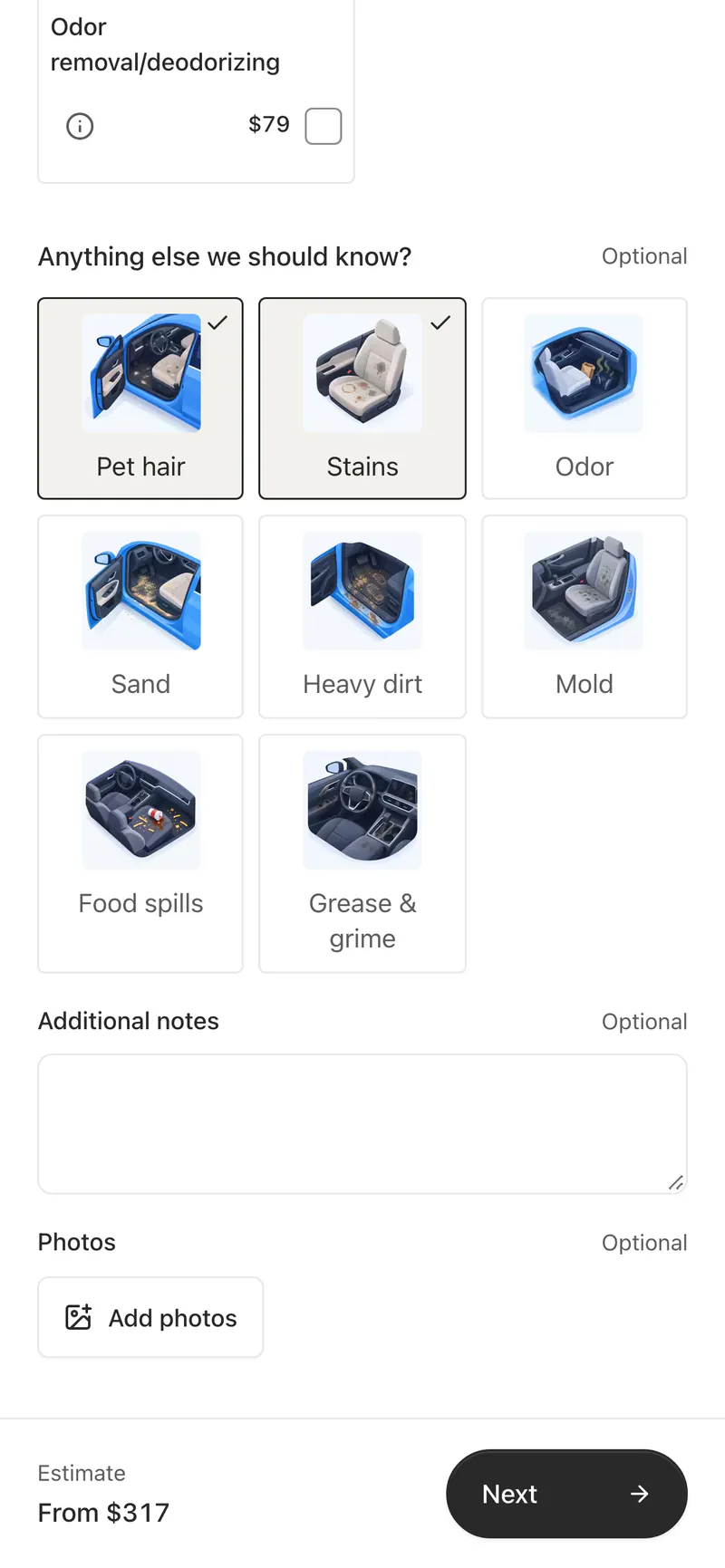
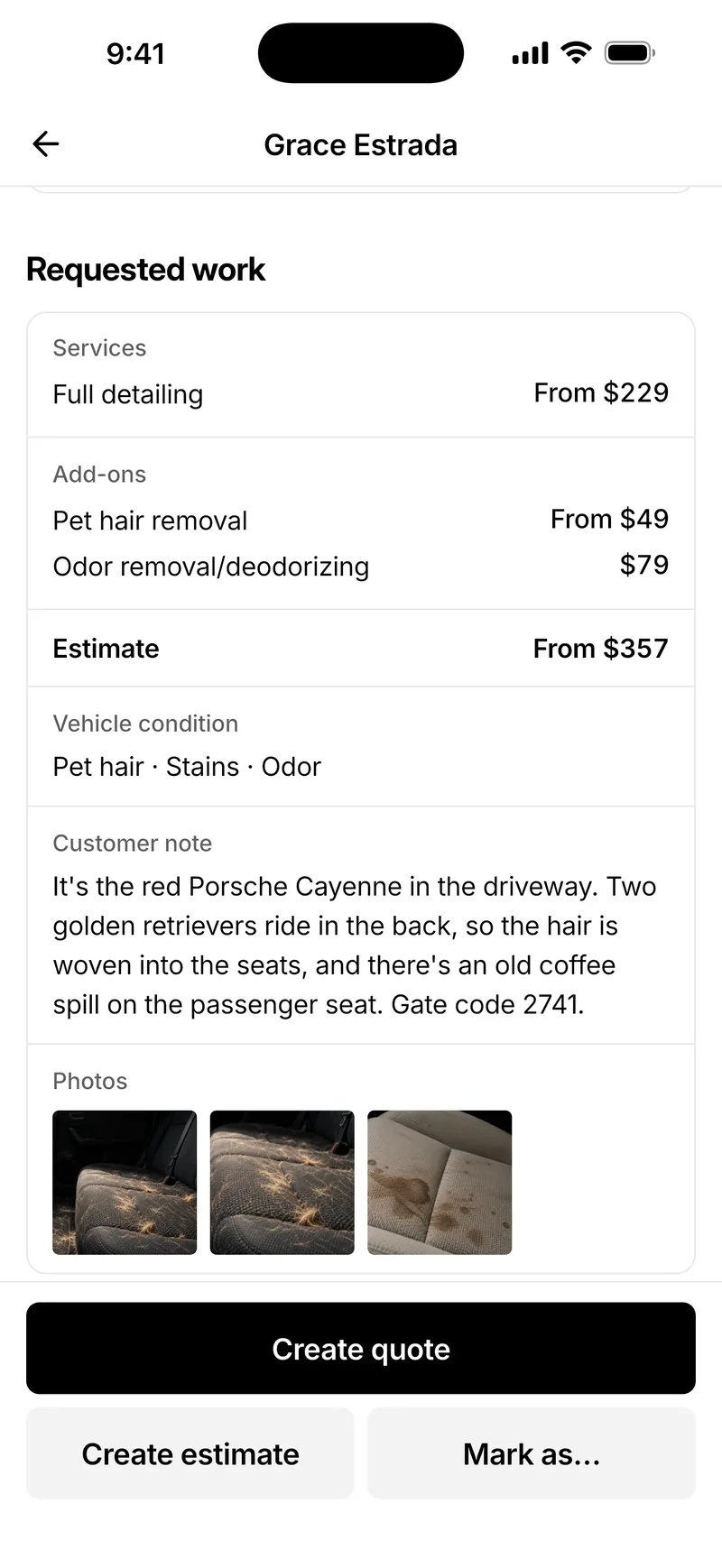
Customers can add photos and notes when they send a request from your booking page, and mark the car’s condition, such as pet hair, stains or sand. You see what you’re working with before you price the job.
Add photos to a job
 1
Open the job
Open a booked request in the app or on the web and find Before and after.
 2
Before photos
Tap Add photos under Before and take or choose photos of the car as you found it.
 3
After photos
When the work is done, add photos under After the same way.
 4
Add to Gallery
Tap Add to Gallery and choose up to 8 Before and 8 After photos.
 5
Show the album
Turn the album on in Gallery, and it appears on your booking page.
Included in the plan
- Photos
- Up to 50 Before and 50 After photos per job
- Gallery
- Albums of up to 8 Before and 8 After photos
- Files
- JPG, PNG or WebP, up to 5 MB each
- Privacy
- Private to you; camera and location data removed
Questions
Who can see the job photos?
Only your business. Photos on a job are private and never public, unless you add some to the Gallery and turn that album on.
How many photos can I add to a job?
Up to 50 Before photos and 50 After photos per job, each a JPG, PNG or WebP up to 5 MB.
Do the photos show where they were taken?
No. TwoBucket removes camera and location data. Each photo shows the time it reached TwoBucket, in your business’s time zone.
Will customers see an album before I approve it?
No. Every album made with Add to Gallery is hidden until you turn it on in Gallery.
Can my customers send photos before the job?
Yes. Customers can add photos of their vehicle, with notes and its condition, when they send a request from your booking page.
What happens to my photos if my plan ends?
They stay with each job. Adding photos needs an active plan, but viewing and deleting them don’t, so your records stay available.
More in TwoBucket
Job timer
Time every job, and see earnings per hour, average job, tips and what’s still owed.
Booking page
Services with photos and prices, vehicle and condition, photos, and the day and time customers prefer.
Mobile app
Requests, quotes, customers, schedule and earnings on your phone. On the App Store and Google Play.
Your work is spotless. Now your business is too.
Set up your page today and share it with your next customer.