 twobucket.
A job timer and earnings per hour for detailers
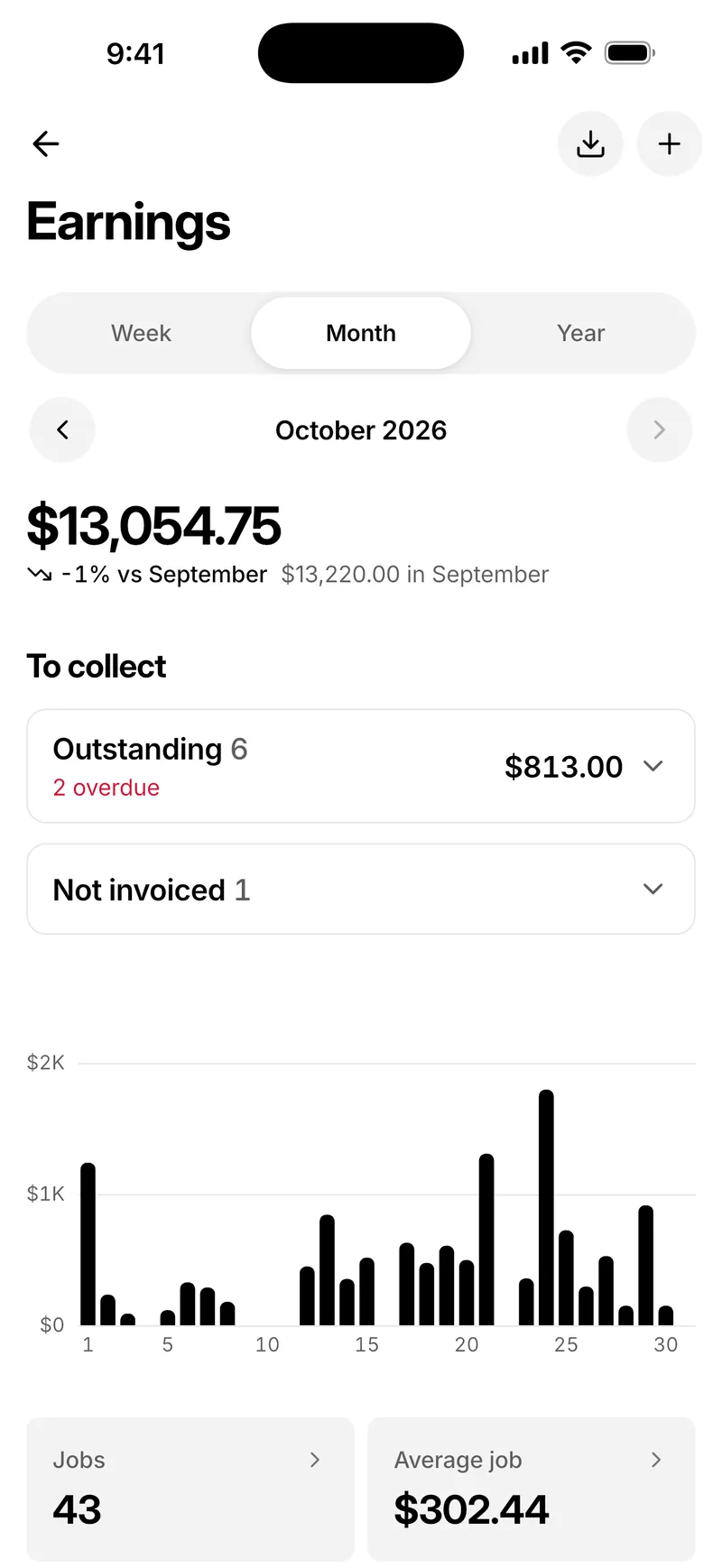
Time each job from start to finish. TwoBucket shows what you earn per hour, your average job, your tips and what’s still owed.
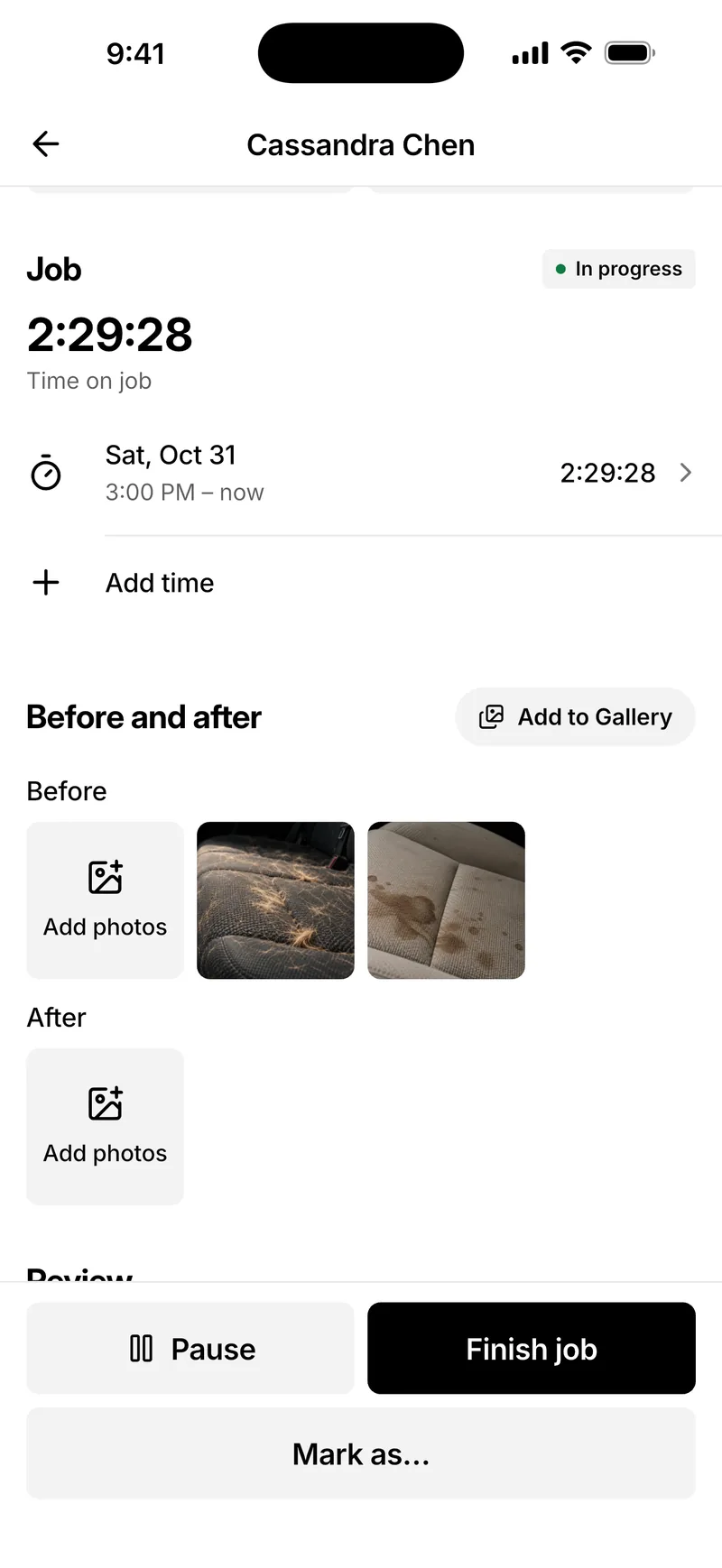
Start, pause and finish every job
Every booked job has a timer. Tap Start job when you begin, Pause for a break or a supply run, Resume when you’re back, and Finish job when you’re done. The time is kept with the job and counted in Earnings.
- In progress, Paused and Done, on the job and on Home
- Finish job marks it done, ready for the invoice
Forgot to stop it? Fix the time
Edit any stretch of time, or add one afterwards. If a timer has been running for a long time, TwoBucket says when it started so you can correct it. Leave the end time empty to keep the timer running.
What each hour really earns
Earnings shows what you earned by week, month or year, against the period before, with your jobs, average job, time on jobs, earnings per hour, tips and top work. Per hour comes from the jobs that have time on them, so jobs you didn’t time don’t skew it.
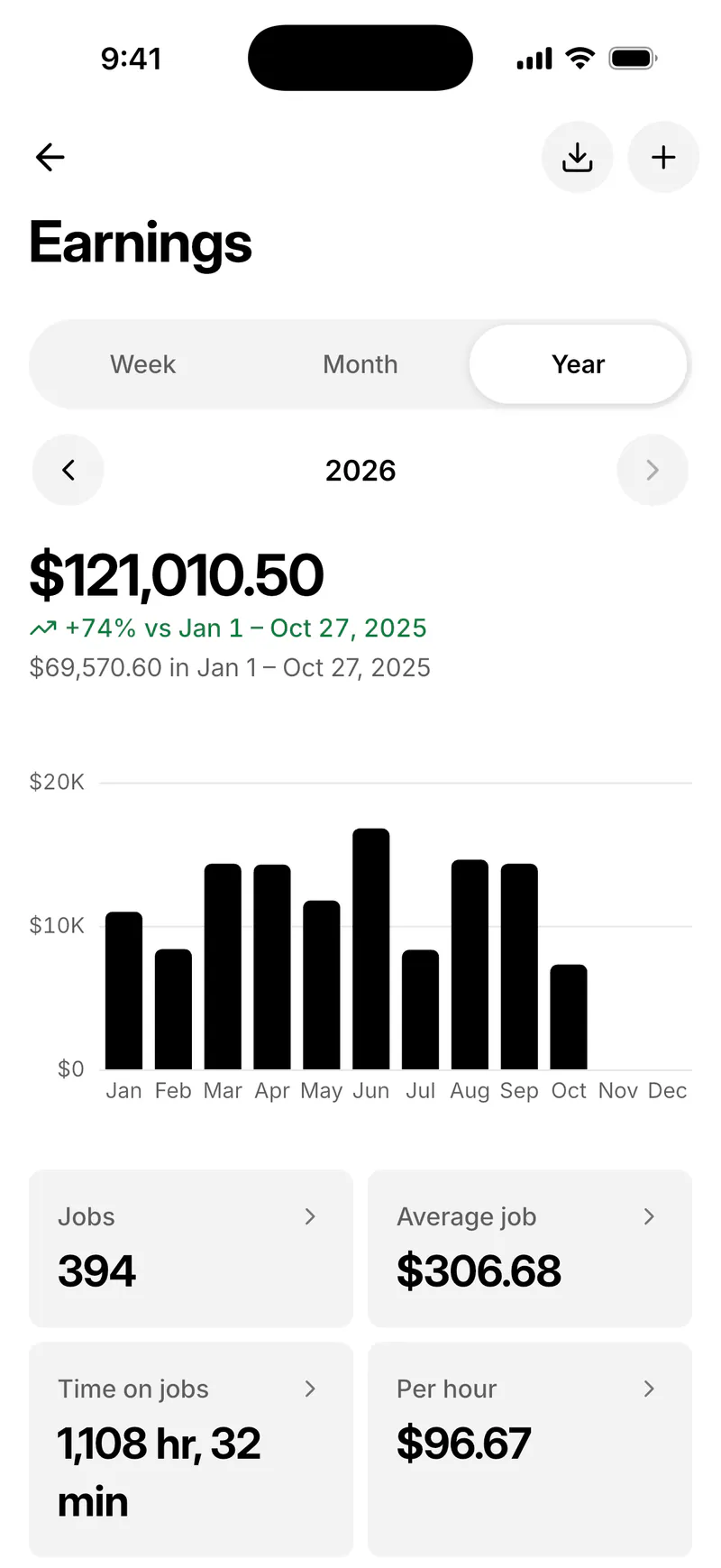
What’s still owed
To collect lists your outstanding invoices, with the overdue ones marked, and work that’s done but not invoiced yet. Paid outside TwoBucket? Add earning records the amount, tip, date, what it was for and how you were paid.
Jobs in progress on Home
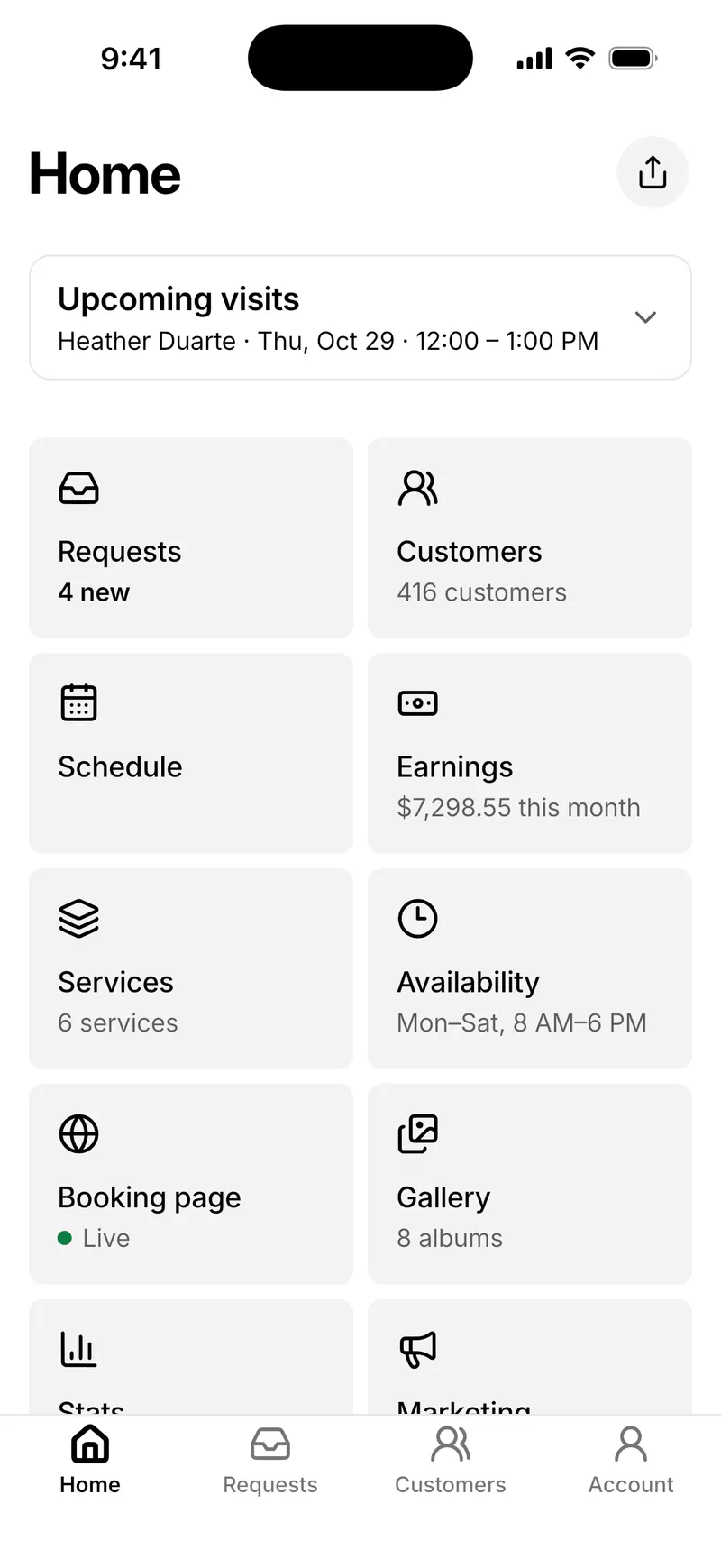
Home shows your jobs in progress with their timer, new requests and your next visits, in the app and on the web. When it’s time for bookkeeping, export Earnings as a CSV file.
Time a job
 1
Start the timer
Open the booked job and tap Start job.
 2
Pause and resume
Tap Pause for a break or a supply run, and Resume when you’re back.
 3
Finish and invoice
Tap Finish job when the work is done, then send the invoice.
 4
Check Earnings
See your time on jobs, earnings per hour, average job, tips and what’s still owed.
Included in the plan
- Timer
- Start, Pause, Resume and Finish on every booked job
- Earnings
- Week, month or year, with per hour, tips and top work
- To collect
- Outstanding and overdue invoices, and work not invoiced
- Export
- Earnings as a CSV file
Questions
How is earnings per hour worked out?
TwoBucket adds up what you earned on jobs that have time on them and divides it by that time. Jobs you didn’t time are left out, so the figure only reflects work you timed.
What if I forget to stop the timer?
TwoBucket shows how long it has been running so you can fix it. Edit the stretch of time, or delete it and add the right one. Each stretch must be under 24 hours.
Do tips count in Earnings?
Yes. Tips show as their own figure. Add the tip when you mark an invoice paid or add an earning.
Can I export my earnings?
Yes. Tap Export in Earnings to download a CSV file for your bookkeeping or your accountant.
Does the timer work in the app and on the web?
Yes. Start, pause and finish a job in the TwoBucket app on iPhone or Android, or in any browser. Home shows your jobs in progress in both.
More in TwoBucket
Card payments
Card, Apple Pay and Google Pay on every invoice, into your own Stripe or Square account.
Before and after photos
Before and after photos on every job, and your best ones on your booking page in one step.
Mobile app
Requests, quotes, customers, schedule and earnings on your phone. On the App Store and Google Play.
Your work is spotless. Now your business is too.
Set up your page today and share it with your next customer.