 twobucket.
How to Reschedule a Detailing Appointment (Rain Day)
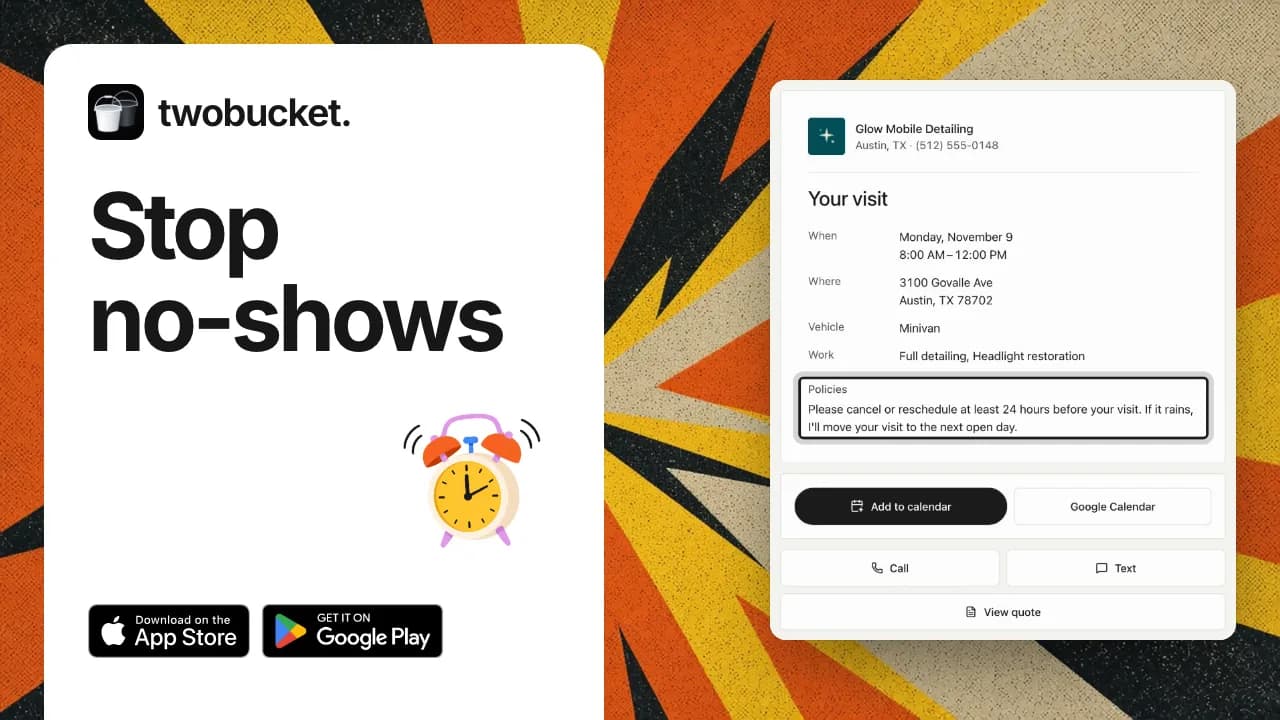
Rain in the forecast? Here's how to reschedule a detailing appointment in TwoBucket: change the day on the visit, then send your customer the update by email. Their visit page shows the new day with an Add to calendar button.
Steps
- Click Schedule and open the visit.
- On the Visit card, click Change and type the new date. Keep or change the start time, then click Save.
- The card now says Changed after it was sent. Saving alone doesn't tell your customer.
- Click Send update, then Send by email, or text it from your phone.
- Your customer's visit page shows the new day and an Add to calendar button.
Transcript
0:00 Your schedule
In this video you’ll learn how to reschedule a detailing appointment in TwoBucket, for example when it rains. From the sidebar, click Schedule. Grace Liu’s full detail is coming up at nine, and rain is in the forecast that day. Click her visit.
0:15 Change the day
Her request opens. On the card called Visit, there’s the day, the time, and when it was sent to her. Click Change. In the field called Date, type the next day. Keep the start time at nine, and click Save.
0:31 Tell your customer
The card shows the new day, and the line Changed after it was sent. Saving doesn’t tell her, and the reminder the day before only goes out once she has the new time. Click Send update, then Send by email. She could also get it by text from your phone.
0:47 What your customer sees
This is her visit page from the email. It shows the new day at nine, and a button called Add to calendar. Thanks for watching. If the change is last minute, give your customer a call or a text too.
Read more
More tutorials
Your work is spotless. Now your business is too.
Set up your page today and share it with your next customer.
Try for $0