 twobucket.
Calendar sync for mobile detailers
Every visit you schedule in TwoBucket appears in your Google Calendar or iCloud calendar within seconds, with the customer, the work and the address.
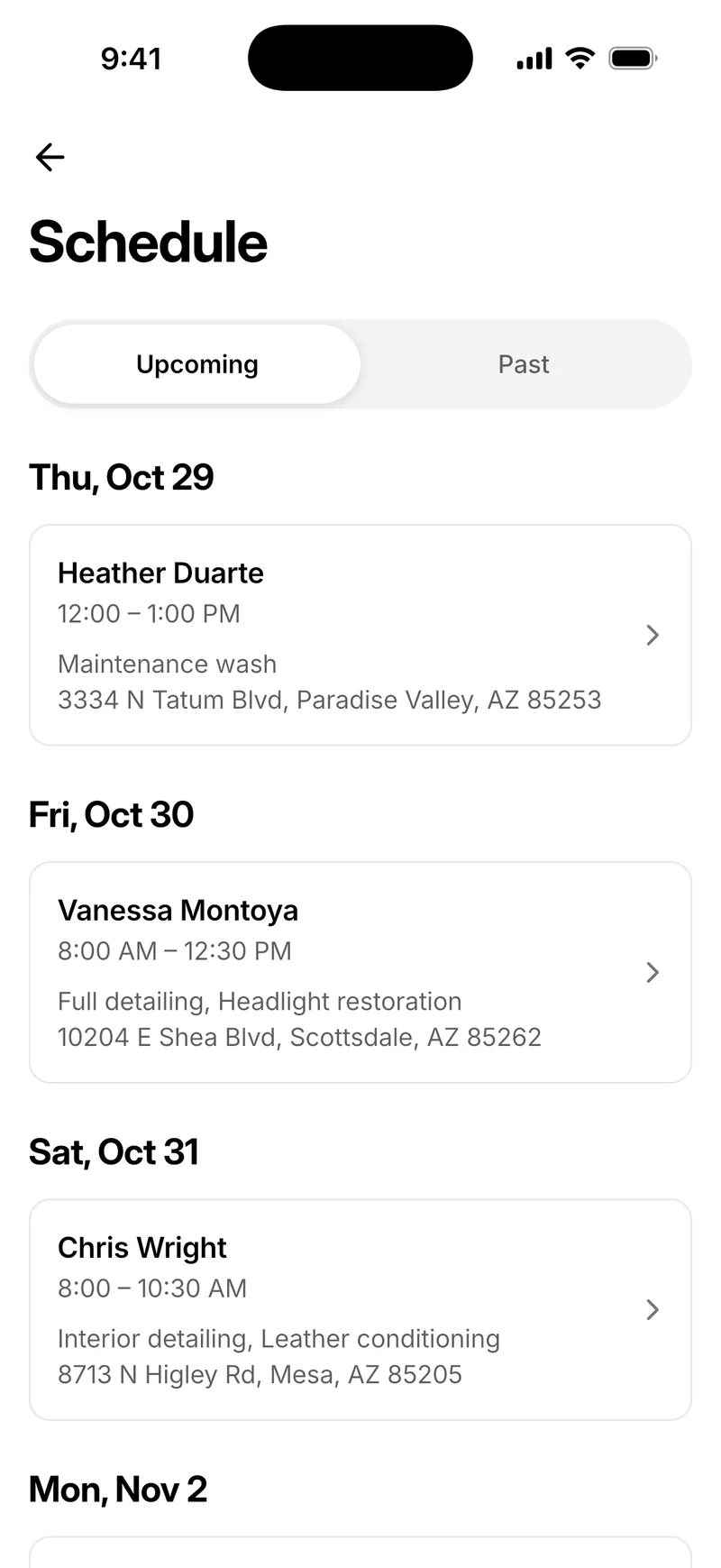
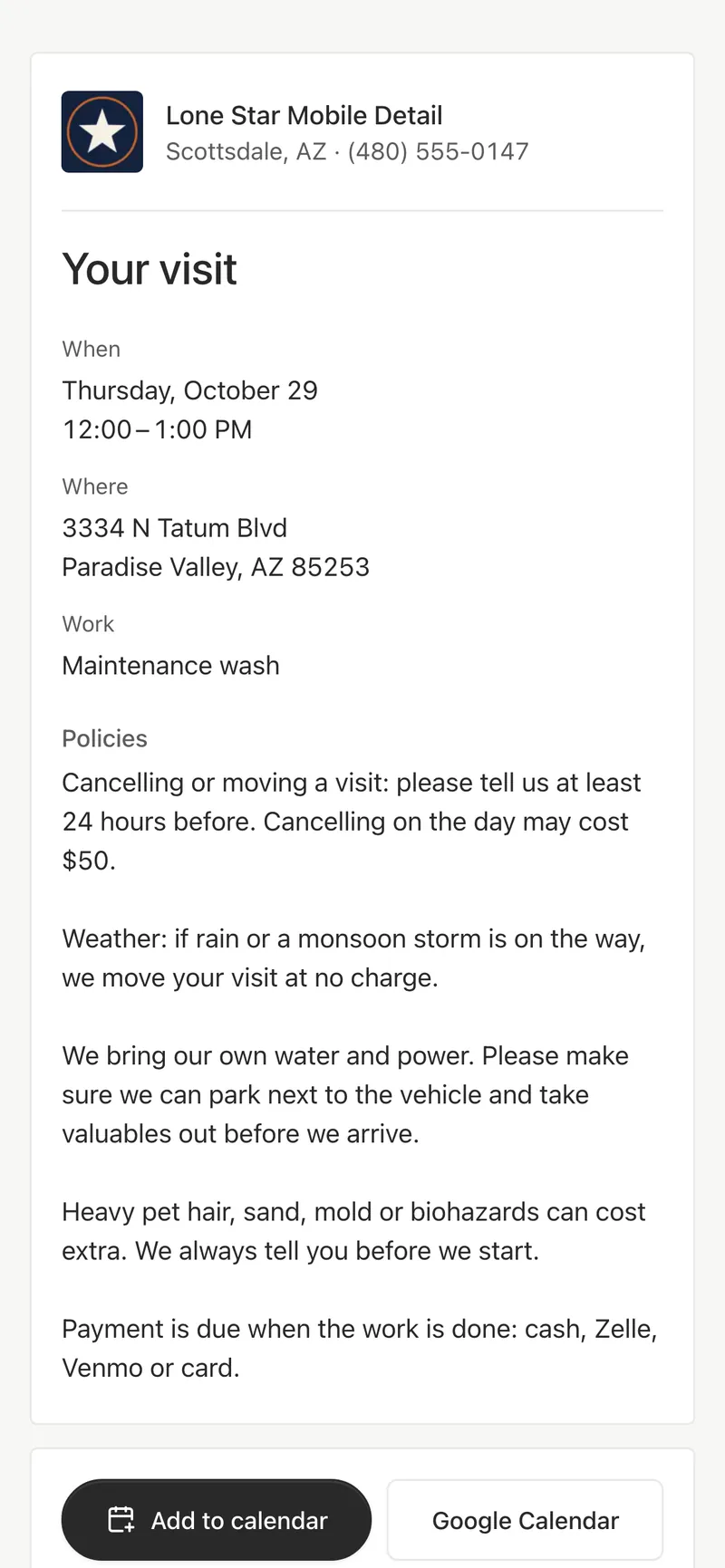
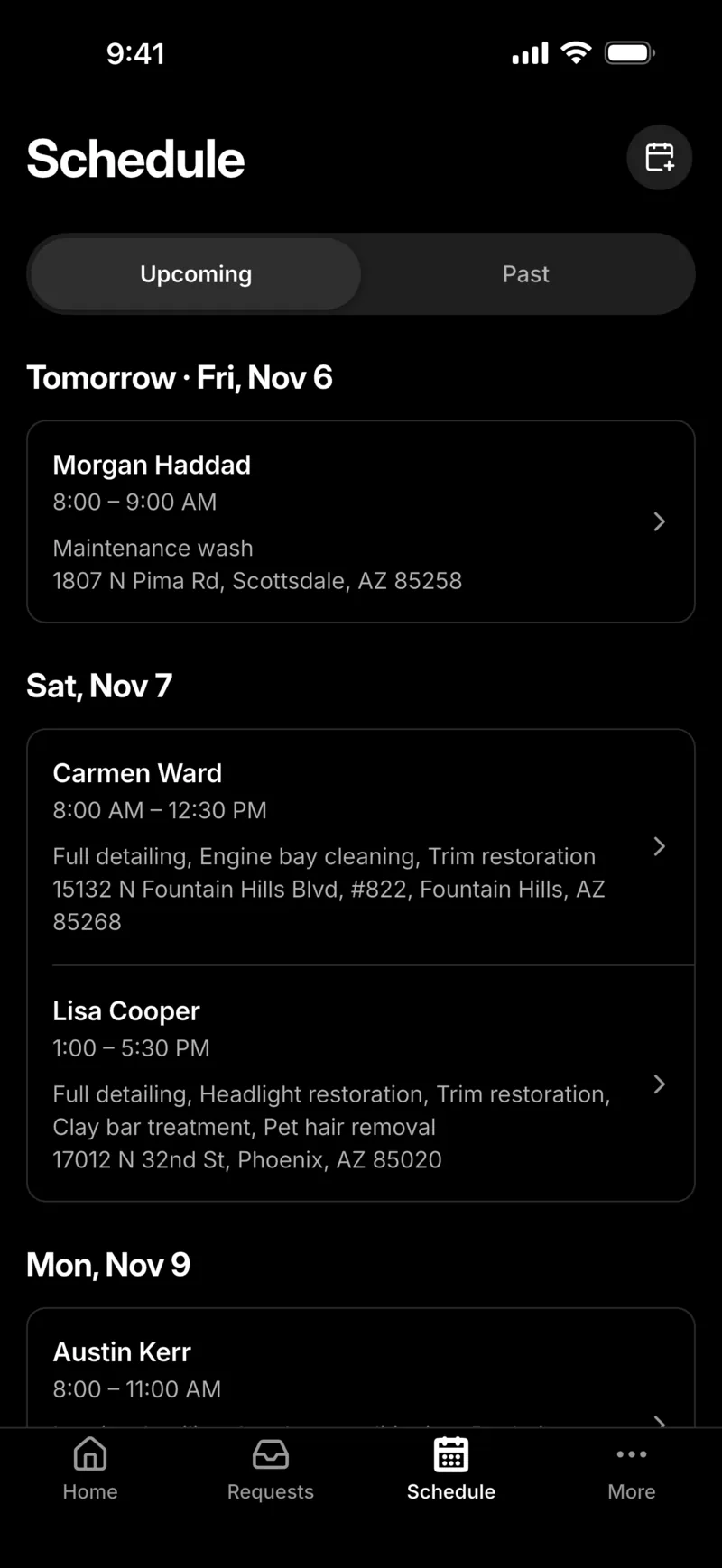
Every visit, in the calendar you already use
Connect Google Calendar or iCloud once. Each visit you schedule appears in a calendar named TwoBucket within seconds, with the customer’s name, the work and the address, so you can see what’s next without opening TwoBucket.
- Each event links back to its request
Move a visit, and your calendar moves too
Change the date or time of a visit in TwoBucket and the calendar event follows. TwoBucket marks the visit as changed after it was sent, so you can send the customer the new time in one tap.
Nothing else in your calendar changes
Visits go only to the TwoBucket calendar. Your own events and other calendars stay exactly as they are. Disconnect, and TwoBucket takes its visits out again; anything you added to that calendar yourself stays.
- TwoBucket only gets access to the calendar it creates
- If the TwoBucket calendar is deleted, TwoBucket can add it again
Outlook and other calendar apps
Use Outlook or another calendar app? Subscribe with a private link instead. Calendar apps check the link on their own schedule, often every few hours, and Google Calendar can take up to a day.
- Anyone with the link can see your visits
- Reset the link anytime to stop old subscriptions
- Use a connected calendar or the link, not both
Connect your calendar
 1
Open Calendar
Go to Availability → Calendar, on the web or in the app.
 2
Google Calendar
Choose Google Calendar, sign in with your Google account and allow TwoBucket to add a calendar.
 3
Or iCloud
At account.apple.com, under Sign-In and Security, make an app-specific password named TwoBucket. Enter your Apple Account email and that password in TwoBucket.
 4
Schedule a visit
It appears in the TwoBucket calendar within seconds.
Included in the plan
- Google Calendar
- Connect once; visits arrive within seconds
- iCloud
- An app-specific password you can revoke anytime
- Private link
- For Outlook or any calendar app
- Customers
- A visit page with an Add to calendar button
Questions
Which calendars does TwoBucket sync with?
TwoBucket connects directly to Google Calendar and iCloud, and each visit appears in a calendar named TwoBucket within seconds. Any other calendar app, including Outlook, can subscribe with a private link.
Does it work with Outlook?
Yes. Copy the private link from Availability → Calendar and subscribe to it in Outlook. Outlook refreshes it on its own schedule, often every few hours, so changes don’t appear right away.
Will TwoBucket change my other events?
No. Visits go only to a calendar named TwoBucket, and TwoBucket only gets access to the calendar it creates. Your own events and other calendars stay as they are.
What happens when I move or cancel a visit?
A connected calendar updates within seconds. Close a request with a visit still to come and its event is removed; past visits stay in your calendar. Calendars subscribed with the link catch up on their own schedule.
Why does iCloud need an app-specific password?
Apple asks apps that connect to your iCloud calendar to use one. It is not your Apple Account password. You make it at account.apple.com under Sign-In and Security, and you can revoke it there anytime.
Do customers see my calendar?
No. Calendar sync is for your own calendar. Customers get a visit page with an Add to calendar button for their own.
More in TwoBucket
Scheduling
Working hours, time windows, visits in Google Calendar or iCloud, updates when plans change, and reminders the day before.
Rebooking reminders
An email to each customer when their next detail is due, and a list of who is due.
Mobile app
Requests, quotes, customers, schedule and earnings on your phone. On the App Store and Google Play.
Your work is spotless. Now your business is too.
Set up your page today and share it with your next customer.