How to Send a Car Detailing Quote by Text from Your Phone
Send a car detailing quote by text from your phone with the TwoBucket app. Open the request, tap Create quote, add an item like pet hair removal, then tap Text from your phone. Messages opens with the quote link already written, ready to send.
Steps
- Tap Requests and open the request.
- Tap Create quote. The customer's services are already in.
- Tap Add item for extras, and type a price for anything without one.
- Tap Save and send, then Text from your phone.
- Send the text in Messages, then tap TwoBucket at the top left to come back.
- Tap Done. The quote card shows Sent and when you sent it.
Transcript
0:00 Open the request
In this video you’ll learn how to send a car detailing quote by text from your phone, with the TwoBucket app. On Home, tap the Requests tab at the bottom. Then tap Jordan Lee’s request, the one on top. Scroll down to the work he asked for. Full detailing and headlight restoration, pet hair, and a note about two dogs.
0:21 Build the quote
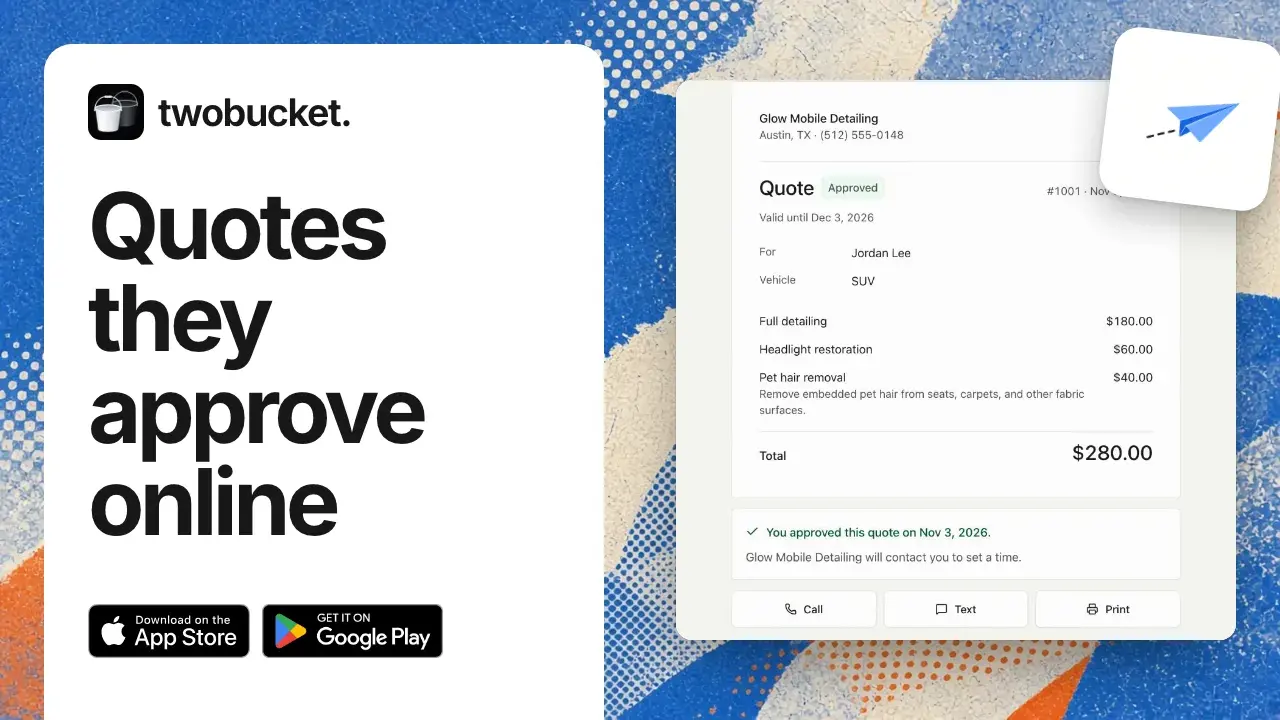
Tap Create quote. Full detailing is already in, at one eighty. Headlight restoration too, at sixty. Because of the dog hair, tap Add item, then type pet hair in the search. Tap Pet hair removal, then Done. It has no price yet. Type forty dollars in the field called Price, then tap Done. The total is now two hundred eighty dollars. Tap Save and send.
0:48 Send it by text
You could send it by email, share it, or copy the link. To text it, tap Text from your phone. Messages opens a new text that’s already written: Hi Jordan, here’s your quote from Glow Mobile Detailing, then the link. Send it like any text, then tap TwoBucket at the top left to come back.
1:08 Quote sent
Tap Done. The request is now marked Contacted, and the quote card shows Sent. Under the total, it shows when you sent it. Thanks for watching. You can send it again later from the same card.
Read more
More tutorials
Take your next booking on TwoBucket
Set up your page today and share it with your next customer.
Try for $0