 twobucket.

A booking form from another company usually runs inside a frame, a page from that company’s address placed inside yours. Your analytics code runs on your page, not inside the frame, so it never sees the request go through. TwoBucket fires an event called twobucket:request-sent on your own page when a customer sends a request through your booking form. A few lines of code pass that event to Google Analytics 4 as a lead, and to Google Ads or Meta if you run ads.
Below is the code for each platform, where to paste it, and how to check that it works. We make TwoBucket, mobile detailing software. This post covers what fires, what doesn’t, and what you can track without any analytics code at all.
Why can’t Google Analytics see my booking form?
Google Analytics runs on your page. The booking form runs on a different company’s address, loaded inside a frame on your page. Your analytics code has no access to what happens inside that frame. Google Ads Help puts it plainly: “Don’t fire the conversion tracking from within an iframe” (support.google.com/google-ads/answer/9148089, as of November 2026). So the signal that a request was sent has to reach your own page before any analytics tool can pick it up.
When does the request event fire?
The twobucket:request-sent event fires on your page when a customer sends a request through TwoBucket’s form on your website and TwoBucket’s code is on that page. Specifically:
- Fires: Inline form, Pop-up button, Floating button, and links to your TwoBucket booking page that open as a pop-up because TwoBucket’s code is on the page.
- Does not fire on your page when you only link to your TwoBucket page with no TwoBucket code on the page (the customer leaves your site).
- Does not fire on your page when you paste the form’s address into a builder’s “embed a website” box, because TwoBucket’s code isn’t on your page then.
- Does not fire on your page in Wix’s Embed HTML element or GoDaddy’s HTML section. Those builders run pasted code inside their own box, so the event fires inside that box, not on your page.
The event carries your TwoBucket page address and no customer details (no name, phone, email or address).
How do I send booking requests to Google Analytics 4?
Paste this code on the same page as your TwoBucket code, after Google’s tag. If your site builder has a header or footer code area for every page, put it there.
<script>
  document.addEventListener("twobucket:request-sent", function () {
    gtag("event", "generate_lead", { lead_source: "Website booking form" });
  });
</script>
generate_lead is the event GA4 recommends for a new lead, such as a form being sent (support.google.com/analytics, as of November 2026). Recommended events aren’t sent automatically, which is why you add this code. GA4 event names may only use letters, numbers and underscores and must start with a letter (support.google.com/analytics/answer/13316687), so you send GA4 this name, not TwoBucket’s event name, which has a colon and a hyphen.
After pasting the code, mark generate_lead as a key event in GA4 so GA4 counts it as a lead and Google Ads can import it. Go to Admin, then under Data display, click Events. Find generate_lead in the Recent events tab and click the star. If no request has been sent yet, click “+ Create event”, enter generate_lead, turn on “Mark as key event”, then click Create (as of November 2026).
Realtime in GA4 shows events within a few minutes. Standard reports can take up to 24 hours.
How do I set it up in Google Tag Manager?
Tag Manager listens to the data layer, so you push an event into it. Paste this code on the same page as your TwoBucket code, after the Tag Manager snippet:
<script>
  document.addEventListener("twobucket:request-sent", function () {
    window.dataLayer = window.dataLayer || [];
    window.dataLayer.push({ event: "booking_request_sent" });
  });
</script>
Then, in your Tag Manager container (as of November 2026):
- Go to Triggers, click New, then Trigger Configuration, then Custom Event. Set Event name to
booking_request_sent. - Create a new tag. Type: “Google Analytics: GA4 Event”. Enter your Measurement ID and set the event name to
generate_lead. Set the trigger to the one you just created. - Publish the container.
How do I count requests as Google Ads conversions?
Google lists two ways to count requests as Google Ads conversions (support.google.com/google-ads, as of November 2026):
- Import the GA4 key event. Link your Google Ads and GA4 accounts (auto-tagging on). In Google Ads, go to Goals, Summary, click “+ Create conversion action”, choose your Google Analytics property and select
generate_lead. Google says Google Analytics conversions are “recommended for tracking all customer traffic on your website”. Data can take up to 24 hours, and the import option can take 24 to 48 hours to appear after linking. - Use the Google Ads tag directly. Create a website conversion action in Google Ads, open its Tag setup, and copy the Conversion ID and Conversion label. Add this line inside the same listener as your GA4 code, replacing the ID and label with yours:
gtag("event", "conversion", { send_to: "AW-123456789/AbC-D_efG-h12_34-567" });How do I count requests with the Meta Pixel?
Lead is a standard Meta Pixel event (developers.facebook.com, as of November 2026). Paste this on the same page as your TwoBucket code, after the Meta Pixel base code:
<script>
  document.addEventListener("twobucket:request-sent", function () {
    fbq("track", "Lead");
  });
</script>
That sends a Lead event to Meta each time a customer submits a request through your form, so Meta can count leads from your ads.
How do I check that it works?
Send yourself a test request through the form on your website. In GA4, open Realtime and look for the generate_lead event within a few minutes. In Tag Manager, use Preview mode to see the booking_request_sent event and the tag that fired. In Meta, open the Test events screen in Events Manager.
After checking, open the test request in TwoBucket, choose Mark as…, then Mark as lost. That keeps it out of your real requests.
Can I see where requests come from without Google Analytics?
Add your website address under Business details in TwoBucket. Visits from the form on your site then show as “Your website” in your booking page Stats, from visit to request, without cookies or any extra code. A plain link from your website counts as “Your website” too, unless the link has rel="noreferrer".
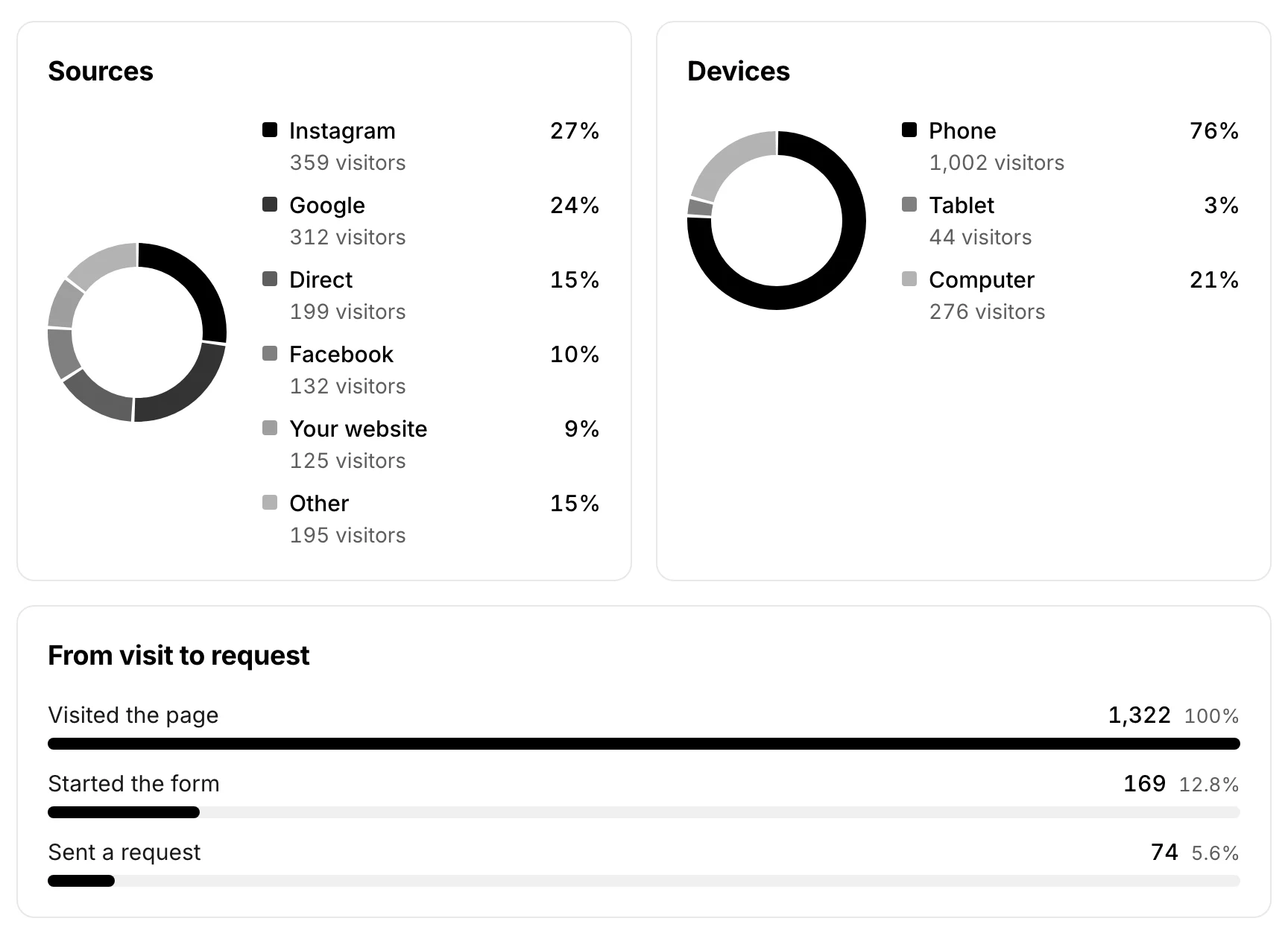
You can tag any link to your booking page. For example, https://bookr.page/your-business?src=google-ads shows under its own name in Stats. The tag ?src=website counts as “Your website.” This works even when you link to your booking page without TwoBucket’s code on the page, where the twobucket:request-sent event does not fire.
Questions
Does the event include the customer’s name or email?
No. The twobucket:request-sent event carries your TwoBucket page address only. No customer name, phone number, email or physical address is sent to your analytics tools through this event.
Why not use GA4’s built-in form tracking instead?
GA4’s enhanced measurement can track some form submissions on your page, but a booking form from another company runs inside a frame. GA4 cannot see inside that frame. The twobucket:request-sent event fires on your own page, where GA4 can pick it up.
Do I need Google Tag Manager?
No. The GA4 code and the Meta Pixel code work without Google Tag Manager. Tag Manager is an alternative way to manage tags if you already use it. Pick one approach or the other for GA4, not both.
Does this work if I only link to my TwoBucket booking page without putting the form on my site?
No. If the customer leaves your site and lands on your TwoBucket page, the event does not fire on your page because TwoBucket’s code is not running there. If your website is under Business details, TwoBucket’s Stats can still show “Your website” as the source, but Google Analytics and Meta won’t receive an event. To get the event, add the form to your website with TwoBucket’s code.


